Why is the right graphics card or GPU key to your success? As content creation steadily grows in popularity and demands rise for cross-platform, high-resolution video, you might be thinking about developing your skills or finally using your knowledge to dive into the world of videography and editing.
Table of contents
- What is A Graphics Card?
- Types of Graphics Cards
- Video Editing on a budget PCs under £1000
- Expert Editing – Best PCs for Editing
- VFX and AI GPUs
- What are 4k and 8k?
- Building a Video Editing PC Around Your Graphics Card
- Frequently Asked Questions
- How can I find out what Graphics Card I have?
For a more general build or a specialist, task-efficient rig, this guide covers everything you need to know about which graphics card to choose to keep up with new trends, balanced with the ideal central processing unit for the perfect rig, and more.
What is A Graphics Card?
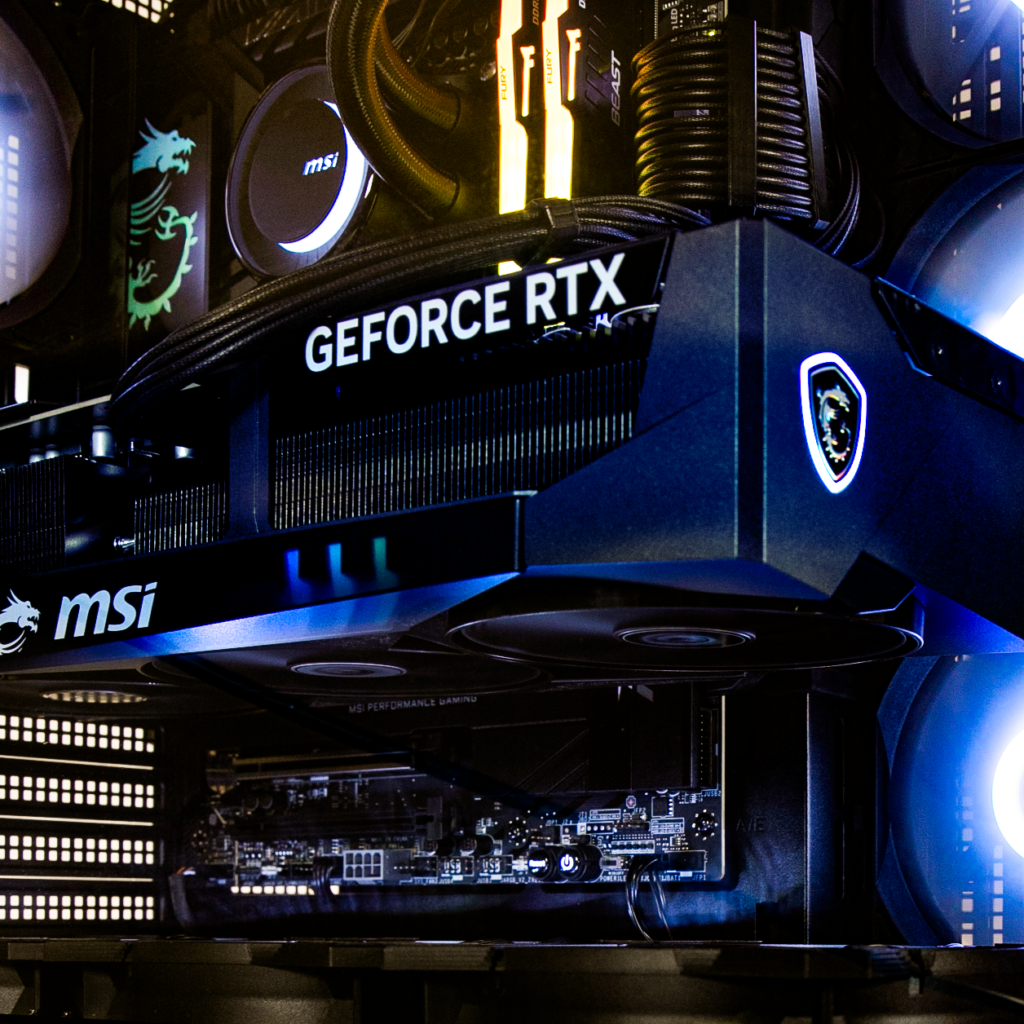
A graphics card, or Graphics Processing Unit, is tasked by your computer with handling what appears on your monitor. It plugs into your PC’s motherboard and translates the visuals, whilst everything else is handled by your CPU (Central Processing Unit). Graphics cards are constantly upgraded as demand for higher visual quality grows.
Still unsure? We’ve put together a full guide to everything you need to know about GPUs so you can deep-dive at your leisure.
The short explanation is that you need an up-to-date graphics card so you can see what you’re doing in visual quality that matches your audience’s and, most importantly, your own expectations.
Types of Graphics Cards
If you’re a professional gamer, you may have heard of the battle between AMD and NVIDIA for dominance in the GPU world. These are the main GPU brands, which have now also moved into AI and smartphones. With growing capital across the techscape, these companies’ GPUs are becoming more and more coveted by the hour, so when buying, it’s good to know what your money is being spent on and why.
Generally, when choosing a card, you’ll find names such as “Geforce RTX 5070” and, to add further complication, there’s also the “Geforce RTX 5070ti”, which is a much better card. Generally, you might be led to believe that card performance improves per release. However, depending on VRAM, PSU requirements, and compatibility, you’ll find certain cards better equipped to handle particular tasks than others.
The latest GPUs will be the most powerful options on the market, but for the price and given what you’re using them for, you may be better off allocating your budget to a more powerful CPU and better monitor(s) for multitasking. Check out our guide on the best PCs for Video Editing for a full guide to everything you need to know about video editing PCs.
Enough RAM for Editing
While 16GB RAM is enough for light tasks, you might find it insufficient to support the applications you use on a daily basis. For new builds in 2026, 32GB for graphic and video editing generally meets the modern standard; however, 64GB of RAM is ideal for preventing the dreaded input lag and software crashes. Learn more about guide on RAM and how it can affect your PC’s performance.

VRAM
Video Random Access Memory (VRAM) exists within your GPU. Similarly to RAM it stores short-term data, but the data is specifically related to graphical functions such as rendering, lighting, shaders, etc.
High-end GPU will be equipped with 24GB to 32GB of VRAM and will be able to handle billions of computational tasks at a time.
Video Editing on a budget PCs under £1000
There is a range of Editing PCs built for a spectrum of creative requirements to cover your needs, but if your budget is on the lower end, more toward a hobbyist/entry-level build, you have options. Keep in mind, these PCs will need upgrading eventually. The GPU has less VRAM, making it slower usually, lower-end PCs:
Video Editing PCs under £1000
| Entry Level | Ultra 55 D435 Next Day PC | Infinity 145 D435 Next Day |
| Price: | £819 | £849 |
| CPU | AMD Ryzen™ 5 5500 | Intel® Core™ i5-12400F |
| GPU | NVIDIA® GeForce RTX™ 3050 6GB | NVIDIA® GeForce RTX™ 3050 6GB |
| RAM | 16GB | 16GB |
Bear in mind, you might want to upgrade shortly after your purchase for better performance. RAM in particular is likely to require upgrading. An extra 500 GB SSD storage is also highly recommended.
Video Editing PCs under £1500
For a more mid-tier build, you have more flexibility and options:
| Mid-range | Ultra 57 D457 Next Day PC | Infinity U7 Ti Next Day PC |
| Price: | £1369 | £1499.00 |
| CPU | AMD Ryzen™ 7 5700 | Intel® Core™ Ultra 7 265KF |
| GPU | MSI NVIDIA® GeForce RTX™ 5070 12GB | NVIDIA® GeForce RTX™ 5060 Ti 8GB |
| RAM | 16GB | 32GB |
These builds will handle 4k editing; however, builds with 16GB RAM will eventually need to be upgraded.
Expert Editing – Best PCs for Editing
| Expert | Editor Ultra Editing PC | Ultra R79 Gaming PC |
| Price: | £2728.80 | £2419.20 |
| CPU | AMD Ryzen™ 9 9900X3D: 12 cores | AMD Ryzen™ 9 7900X: 12 Cores |
| GPU | NVIDIA® GeForce RTX™ 5070 Ti 16GB | NVIDIA® GeForce RTX™ 5070 Ti 16GB |
| RAM | 32GB | 32GB |
These PCs offer high-quality performance for heavy rendering. Whilst the graphics cards certainly aren’t low-end, the majority of the power is in the 12-core CPU. These PCs offer multi-purpose performance, with enough power to render somewhat complex 3D models.
VFX and AI GPU
If you are into some seriously complex editing, maybe you’re planning to make your own film with believable CGI, or run an AI model locally, you have a few options: If you’re rendering an extremely complex CGI scene, you can outsource your rendering to a server farm. The downside to this is that whilst you might save yourself months of rendering time, there is always a risk with outsourcing of cybersecurity threats, and an NDA might not permit you to do so; many VFX studios use a combination of both local server farms and cloud rendering. For AI users, you might be considering purchasing an entirely separate AI workstation– an option for those who love running local models.
If you want to run your own mini server for on-site rendering or simply want to see how far a GPU can go, you can task your rendering to an Infinity 4U Server that runs a graphics card capable of moving mountains (in 3D). The NVIDIA® RTX™ PRO 2000 Blackwell is a card specifically adapted to 3D rendering; however, for gaming, you will see a similar or lesser performance to the 5070. If you need a rendering monster and money isn’t an issue, the NVIDIA® RTX™ PRO 6000 Blackwell will tear through rendering, AI tasks and triple-A gaming, but the price point of a server fitted with this card at more than £12,000 means this card is one for serious professional artists.
What Else do I Need for Video Editing?
What you need depends entirely on your interests in work and hobbies. A streamer will need a high-quality webcam, microphone, and a PC capable of extreme multitasking. A videographer and editor will need a streamlined build to handle software that will work your CPU (central processor), and for motion graphics, VFX, and 3D modelling, you’ll need a rendering machine with enough processing power to compute billions of geometric calculations.
If you want to try your hand at sculpting or painting, you’ll also need a drawing tablet to integrate pen pressure into your workflow for dynamic brush strokes. A screen tablet is easier to adjust to, but a pen tablet is more affordable, and there are plenty of brands to choose from.
What is 4k and 8k?
The future of quality is paved with new components, AI implementation and even bigger screens. 4k and even 8k are optimum for high-quality editing to match the fidelity of every screen. These amounts refer to the number of horizontal pixels on a screen, with resolutions ranging from 720p, 1080p, 1440p, to close to 4000 pixels known as 4k, and close to 8000 pixels known as 8k. These resolutions don’t necessarily mean that screens are getting larger, but they refer to the advancement in resolutions and increases in pixels per centimetre. Editing in 8k is optimal for performance and future-proofing your footage, but 4k is far more attainable and still a high standard for modern streaming.
A GPU which can handle 4k doesn’t need to be premium; a mid-tier GPU can usually handle that sort of work and game, but definitely not at the same time.
Building a Video Editing PC Around Your Graphics Card
If you are already set on a GPU, then that’s great! All you need is the rest of your build, which should be super simple, right?
The truth is, the GPU is just the beginning. If you want to build your own PC, then try our build configurator to find a CPU to match.
Other considerations include:
- Cooling and AIO
- RAM
- Motherboard
- Compatibility
Compatibility is important to double-check when pairing components. As technology advances, sockets are refined and upgraded; as a result, some motherboards simply aren’t compatible with the latest parts, depending on size. Fan types and brands are also a key consideration.
Can I Play Games on a Video Editing PC?
Yes, you can buy a top-tier PC, built to handle multiple functions and excel at editing, rendering, and gaming. For gaming, a decent GPU is necessary for real-time rendering, whilst editing and modelling software relies on a combination of CPU and GPU, with more lean towards CPU. However, not all expensive GPUs, which might be the best choice for 3D applications, are optimised for gaming. When choosing a PC, keep in mind raw performance and stability over gaming features; game rendering in real time is not the same as the requirements for building a model from scratch or storing, replaying and mixing sound and video. So, whilst a video editing PC will be able to play games, there are a few factors to consider:
Visuals vs. Frame Rates
Ray tracing delivers stunning, lifelike lighting and reflections, pushing the visual quality of gaming ever closer to perfection. However, this level of realism comes at a cost, demanding significant GPU power and often resulting in a noticeable drop in raw frame rates (FPS). This matters little for editing unless you want to render in 3D or composite advanced visual effects, but a GPU that sacrifices raw speed for visual features may not be the best for real-time editing.
Native Resolution vs. AI Upscaling
To regain lost performance, many users turn to AI-driven solutions such as DLSS. While effective, these technologies reconstruct images from a lower internal resolution, meaning you’re trading true native clarity for an AI-enhanced version. In editing, accuracy is everything. AI upscaling tools are great for gaming performance, but when you’re colour grading or working with fine detail, you’ll want true native resolution. It’s worth noting that you can turn off AI visual enhancement in your graphics card’s driver settings.
Cost vs. Brand
Accessing the most advanced ray tracing often requires premium GPUs, which is where a gaming PC and an editing PC meet in the middle. Editing software can be extremely demanding on both your GPU and CPU, whilst gaming is usually more GPU-demanding and places less load on your CPU. This is because the GPU renders in real-time.
Frequently Asked Questions
How can I find out what Graphics Card I have?
To find out what graphics card you have on Windows 11, right-click your Start menu and select System> About, and your graphics card should be listed. To remove or replace your graphics card, follow our support guide.
Can I play games on an editing PC? And what games can I play?
A top-tier editing PC with a suitable graphics card can play any modern triple-A title.
How much storage do I need?
It’s always recommended that you buy all the RAM you need with your build, as you can’t mix and match types and sizes later. For modern-day needs, the recommended minimum amount is 16 GB of RAM and a 500GB SSD.