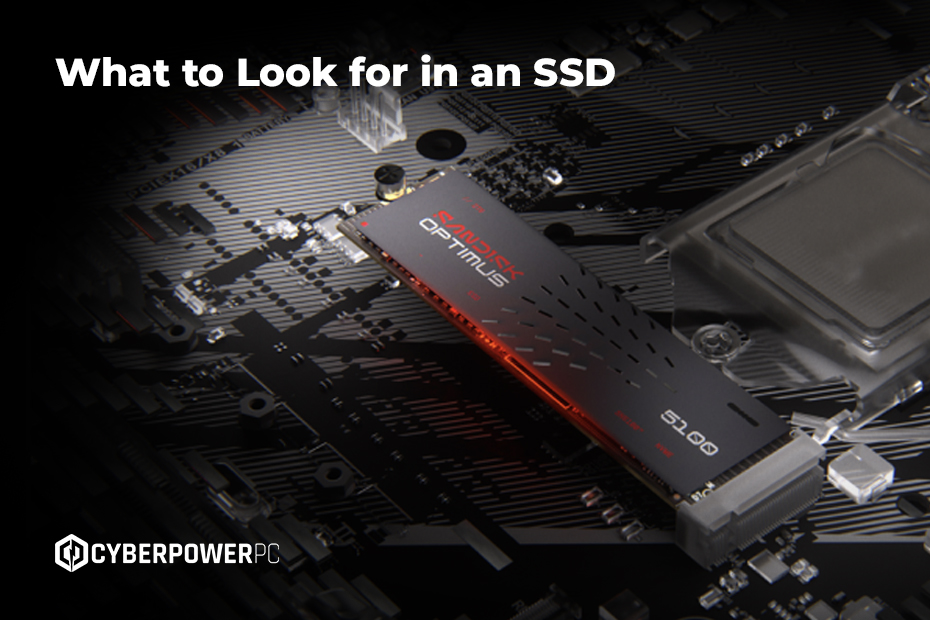
Competitive FPSs, RPGs, story-driven single-player games, and cosy couch games all have one thing in common: storage can make or break your gaming experience. If you’ve ever stared at a loading screen for far too long, chances are your storage is holding you back. It’s the kind of stress you don’t need, especially if you just want to sit down for a few hours after a hard day to decompress.
That’s where SSDs come in.
But what is an SSD, what does SSD stand for, and more importantly, what should gamers actually look out for when choosing one? With terms like NVMe, M.2, read/write speeds, and endurance ratings flying around, it’s easy to feel overwhelmed.
This guide breaks it all down. We’ll explain what an SSD is, what an SSD does, how SSDs work, and then deep-dive into the key things to look for in an SSD when buying a gaming PC, gaming laptop, or upgrading your setup. We’ll cover:
- What is an SSD?
- How does an SSD work?
- What to look out for in an SSD
- Installing and managing an SSD
- How to install an SSD in a PS5
- SSD FAQs
What Is an SSD?
SSD stands for Solid State Drive. It’s a type of storage device that uses flash memory to store data, rather than spinning disks.
Is an SSD a hard drive?
Yes, an SSD is like a hard drive, but up to a hundred times faster. Unlike traditional HDDs (Hard Disk Drives), SSDs have no moving parts, making them quicker, quieter, cooler, and more durable. That’s why SSDs are now standard in modern gaming PCs and laptops.
Is an SSD better than an HDD? Absolutely. No contest. For a full breakdown, be sure to check out our guide to SSDs vs HDDs.
What Does an SSD Do for Gaming?
An SSD doesn’t directly increase FPS, but it can significantly improve your system’s overall performance. Here’s how it impacts gaming directly:
- Faster boot times – Windows loads in seconds, not minutes
- Shorter game load times – huge open-world maps render almost instantly
- Smoother gameplay – fewer stutters when assets load in mid-game
- Quicker updates and installs – especially useful for large AAA titles
- Better overall system responsiveness
How Does an SSD Work?
An SSD stores data on NAND flash memory chips, which can be accessed almost instantly. There’s no mechanical arm searching for data like in an HDD. Instead, your system pulls files straight from memory cells at lightning speed.
That’s why SSDs:
- Access files faster
- Handle multiple tasks better
- Don’t slow down under heavy load
This speed advantage becomes even more obvious with NVMe SSDs, which we’ll cover shortly.
What to Look Out for in an SSD
If you’re buying a gaming PC, laptop, or upgrading your storage, this is what you should really be paying attention to.
1. SSD Type: SATA vs NVMe
One of the first things to look out for in an SSD is how it connects to your system: direct CPU communication, or a SATA (Serial ATA) interface.
SATA SSDs are affordable and reliable. They’ve been around longer, but are still solid with max speeds around 550MB/s. NVMe SSDs are more modern and connect straight to the PCIe interface, allowing dramatically higher speeds than SATA SSDS, often 3,000-7,000 MB/s or more.
For gamers, NVMe SSDs lead to faster level loading and better performance in open-world games. They’re ideal for next-gen titles and future releases, so if your system supports it, choose NVMe.
2. Form Factor: M.2 vs 2.5”
Another key thing to look for in an SSD is its physical size and shape. There are two main sizes of SSD: 2.5”, which is the traditional SSD size compatible with most PCs, or M.2, a compact, stick-like design that fits directly onto the motherboard. 2.5” SSDs are usually SATA, while M.2 SSDs are used by both SATA and NVMe drives.
Most modern gaming PCs and laptops now use M.2 NVMe SSDs for maximum performance and clean builds. To install an M.2 SSD, it’s usually as simple as slotting it in and securing one screw – no cables required.
3. Storage Capacity: How Much SSD Storage Do Gamers Need?
Games are massive now. Really massive. In particular, modern RPGs and live-service games like Call of Duty or Baldur’s Gate 3 require huge patches and frequent updates, so you’ll need storage that not only suits the game now, but any future data it will need too. For gaming, we recommend the following SSD sizes:
- 500GB – Entry level (OS + a few games)
- 1TB – Sweet spot for most gamers
- 2TB+ – Ideal for large libraries and future-proofing
A common mistake is buying an SSD that’s too small and overloading it with data immediately.
4. Read & Write Speeds (Why They Matter)
The faster the speed, the smoother the experience in modern engines. SSD speeds are measured in read and write speeds, usually in MB/s.
- Read speed: How fast data is accessed (important for game loading)
- Write speed: How fast data is saved (installs, updates, recording gameplay)
For gaming, NVMe SSDs with 3,500MB/s+ read speeds are excellent. While you won’t notice every extra MB/s, the jump from HDD to SSD – and SATA to NVMe – is night and day.
5. Endurance & Lifespan
Gamers write a lot of data, updates, patches, downloads, re-installs. That’s why endurance ratings matter. Look at the TBW (Terabytes Written) rating, a higher TBW means the drive can handle more data writes over its lifetime, ideal for heavy gaming use. Remember to buy only from reputable brands with a proven track record.
6. SSD Health: How to Check SSD Health
Keeping an eye on SSD health helps you avoid surprises and data loss. Check SSD health using built-in tools like Windows Command Prompt (wmic diskdrive get status), Settings (Storage > Disks & Volumes), or macOS Disk Utility. You can also use third-party tools, but always exercise caution when downloading new apps.
Installing and Managing an SSD (Common Gamer Questions)
How to Install an SSD in a PC
To install an SSD, first power down your PC. Mount the SSD (or slot in, if using an M.2), connect cables if required, and boot into BIOS. That’s it, modern systems make this process extremely straightforward.
Want to initialise, format or wipe an SSD? This won’t harm it, just make sure you’re backing up first. Use secure erase tools if you plan to sell or reuse your SSD.
Want to defrag your SSD? Don’t. SSDs won’t benefit from defragmentation, and doing it unnecessarily can reduce their lifespan. Modern operating systems automatically optimise SSDs correctly; leave it to them.
How to Install an SSD in a Laptop
Laptops vary, but most gaming laptops support SSD upgrades. In fact, gaming laptops rely heavily on fast storage because:
- CPUs and GPUs are already thermally limited
- Fast SSDs keep everything responsive
- NVMe SSDs reduce loading bottlenecks
If you’re buying a gaming laptop today, always check SSD compatibility first or ask our team for more information.
How to Install an SSD in a PS5
The PlayStation 5 console supports NVMe SSD upgrades, but they must meet Sony’s speed requirements, and Sony also recommends a compatible heatsink. SSDs are great for expanding next-gen storage in PS5s. Again, check compatibility before you buy.
So, what should you really look out for in an SSD? Remember to choose NVMe over SATA where possible and M.2 form factor for modern systems. Look for at least 1TB of SSD storage and strong read/write speeds, all from a reliable brand with good endurance.
Whether you’re buying a pre-built or custom gaming PC, a powerful gaming laptop, or upgrading your own rig, the right SSD transforms how your system feels day to day. For more tips, advice, and gaming industry news, check out the rest of our blog and visit the core knowledge hub for more in-depth guides.
SSD FAQ
SSDs are so expensive at the moment, should I buy now or wait?
Sometimes the market is extremely turbulent in terms of components. Keep an eye on the current market for peaks and troughs to make an informed decision.
How can I ensure all my data is safe on an SSD?
The only way to ensure the security of your storage is to back up both internal and external memory as much as possible, you may even choose to purchase multiple SSDs to do so.