If you’re building a gaming PC, or just trying to understand what’s inside one, the motherboard is one of those parts that gets mentioned frequently but rarely properly explained.
It sounds important, and that’s because it is. But what actually is a motherboard, and what does it do in a gaming PC? In this guide, we’ll break it down in plain English. We’ll cover:
What Is a Motherboard?
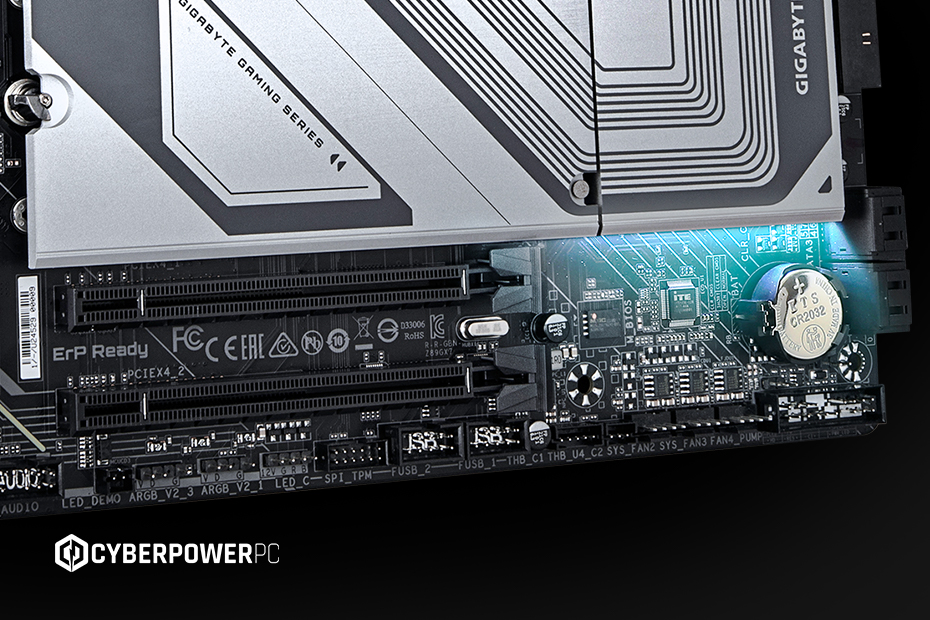
A motherboard is the main circuit board inside your computer. It sits inside your PC case, mounted flat against the back panel. Everything else plugs into it: your CPU, RAM, GPU, storage, and all your peripherals.
What Does a Motherboard Do in a Computer?
The motherboard has one core job: connect everything together and let it communicate properly.
If your PC were a gaming squad, the motherboard would be the command centre, keeping everyone connected and working together. It doesn’t directly give you performance like a graphics card or CPU does, but without it, none of those parts would be able to communicate.
Every major component in your system talks through the motherboard:
- Your CPU processes instructions
- Your RAM handles short-term memory
- Your GPU renders your games
- Your storage holds your files and games
The motherboard ensures that all that data flows between components without chaos. It also provides power distribution, expansion support, and the physical slots and ports you use every day. Without it, your PC parts would just be expensive paperweights.
Motherboards come in three different sizes: ATX (full-size, has the most features), Micro-ATX (cheaper, has fewer slots), and Mini-ITX (best for compact builds).
What Is a Motherboard Used For in Gaming PCs?
For gamers specifically, the motherboard matters in a few key ways. It determines:
- What CPU you can use
- How much RAM you can install
- How many SSDs or drives you can add
- Whether you can upgrade your GPU setup later
- What ports you get for peripherals
So while the kind of motherboard you have won’t directly increase frames per second, for example, it absolutely shapes how far your system can go, now and in the future. A good motherboard gives better connectivity, more stability under load, and the option to upgrade later.
Features of a motherboard
So the motherboard is your PC’s main circuit board, but what actually goes into it? Key features of a motherboard include:
- The CPU socket, which is the physical slot your processor fits into.
- The chipset, which controls what your motherboard can actually do.
- RAM slots, which determine how much RAM you can install and how fast it runs.
- Expansion slots, which are the long slots you use for:
- Graphics cards (GPU)
- Capture cards
- Sound cards
- NVMe expansion cards
- 2–4 M.2 slots (for SSD storage)
- Several SATA ports (for SSD & HDD storage)
- USB ports, possibly including USB-C
- VRMs (Voltage Regulator Modules), which control how cleanly power is delivered to the CPU.
- The BIOS, which is the motherboard’s built-in control system.
- Ethernet ports (wired internet), WiFi modules (wireless connection), and Bluetooth support
- Onboard audio chips
What Is a Motherboard Chipset?
The chipset is one of the most important (and most overlooked) parts of a motherboard. It controls how your CPU interacts with everything else, including USB ports, storage drives, PCIe lanes (used by GPUs and SSDs), and overclocking features (on some boards).
You can think of the chipset as the ruleset for your motherboard. It determines which features are available and how much flexibility you have. Different chipsets support different levels of performance and expandability, even if they use the same CPU socket. It’s one of the biggest factors in whether a motherboard is considered entry-level, mid-range, or high-end.
How Many USB Ports Does a Motherboard Have?
There’s no single answer here; it depends on the motherboard. Most modern boards will typically offer:
- Several USB-A ports (for standard peripherals)
- At least one or two USB-C ports on newer models
- Additional internal headers for front-case USB connections
Higher-end boards tend to offer more ports and faster standards, while budget boards keep things more minimal.
For gaming setups, USB ports matter more than people think — especially if you’re running controllers, gaming keyboards, mice, headsets, and streaming gear like capture cards or microphones all at the same time. Running out of USB ports is one of those “nobody warns you until it happens” problems, so it’s better to have too many than just enough.
How Many GPUs Can a Motherboard Support?
For modern gaming PCs, the answer is usually one GPU. While some motherboards physically include multiple PCIe slots, multi-GPU gaming setups (like SLI or CrossFire) aren’t common in modern gaming. Most games no longer support them properly. For 99% of gamers, the focus should always be on a single powerful GPU rather than multiple cards.
How Many CPU Ports Does a Motherboard Have?
This is usually misunderstood — unlike USB ports, there aren’t “CPU ports” in the traditional sense. Instead, the CPU fits into a specific socket type, and the motherboard determines:
- Which CPUs are compatible
- How powerful those CPUs can be
- Whether overclocking is supported
If you want to know what kind of CPUs are supported, the answer always depends on the socket and chipset combination.
How to Check Your Motherboard
If you already have a PC and want to know what motherboard you’re using, there are a few easy ways. On Windows, you can usually:
- Check system information tools
- Use command prompts or system utilities
- Or install hardware monitoring software that lists components clearly
This is useful if you’re upgrading your CPU, checking compatibility for RAM or SSDs, or planning a GPU upgrade. Knowing your motherboard model is basically step one for any serious upgrade path.
How to Find Your Motherboard Model
If you’re unsure, the easiest method is using system tools that read your hardware directly. Most tools will show:
- Manufacturer
- Model name
- Chipset
- BIOS version
This matters because motherboard compatibility dictates what upgrades are possible without replacing the entire system.
How to Update a Motherboard BIOS
The BIOS is the motherboard’s built-in software that controls hardware at a low level. Updating it can:
- Improve CPU compatibility
- Fix bugs or stability issues
- Add support for newer hardware
But it’s not something you should do casually. A failed update can cause system issues, so it’s usually only worth doing when installing a new CPU, fixing a known stability issue, or improving system compatibility. For gamers, BIOS updates are more of a “when needed” task rather than something to constantly worry about.
The motherboard might not be the most exciting part of a gaming PC, but it’s easily one of the most important. It quietly determines how stable your system runs under load, what features you can actually use, and how future-proof your build is. A weak motherboard can bottleneck your upgrade path. A strong one gives you flexibility for years. And once you understand that, building or upgrading a PC suddenly makes a lot more sense.