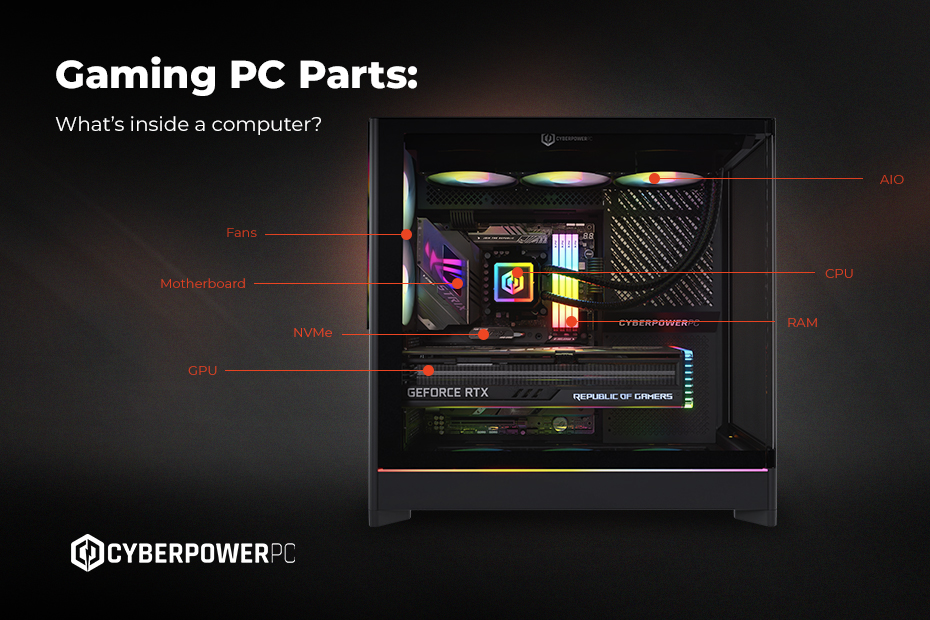
If you’ve ever wondered what’s really inside a computer, you’re not alone. Whether you’re looking at pre-built systems, considering a custom gaming PC, or just curious about what makes these machines tick, understanding the different PC parts is the first step.
Even if you’re not planning on buying individual computer components yourself, it’s helpful to know what each part does, how they work together, and what to consider when comparing performance. This knowledge is especially useful if you’re thinking about investing in a gaming PC or desktop.
In this guide, we’ll walk you through the parts of a computer, explain their roles, talk about PC part compatibility, and give you a clearer picture of what’s going on inside your machine. We’ll cover:
Why learn about PC components?
At first glance, a computer might look like a single device — a box, a screen, and a few cables. But open up the case, and you’ll find a carefully balanced collection of internal components, each with its own function. There are three big reasons why it’s worth learning about each of them and what they do:
- Smarter upgrades: Knowing the basics makes it easier to decide when it’s worth replacing a part, or when a full system upgrade makes more sense.
- Customisation: Understanding the parts of a PC helps you decide what performance features matter most to you (e.g., higher frame rates for gaming, faster rendering for creative work, or stability for streaming).
- Troubleshooting: If something goes wrong, knowing what’s inside a computer and what each part does can make diagnosing problems much easier.
Even if you never buy PC parts in the UK directly and want to buy a pre-made model, having a working knowledge of them means you can compare systems with confidence. For more tips when shopping for your dream machine, be sure to read our PC buying guide.
The main components of a computer
Let’s break down the components of a computer into their most important categories. Together, they form the foundation of every system, whether it’s a high-end workstation PC or a lightweight home office desktop.
CPU (Central Processing Unit)
The CPU is often described as the “brain” of the computer because it handles calculations, instructions, and decision-making. A faster CPU generally means better overall performance, especially in tasks like rendering, simulations, and multitasking.
For gaming, the CPU works alongside the GPU to manage frame rates and smooth gameplay. But compatibility matters: you need the right motherboard socket for the CPU you choose. We’ve written a full guide on the best CPUs for gaming if you want to explore this in more depth.
When comparing CPUs, look at clock speed and core count. These matter for multitasking and high-end workloads, both in gaming and in content creation too.
GPU (Graphics Processing Unit)
The GPU, or graphics card, is responsible for rendering images, animations, and video. GPUs come in a variety of forms, from entry-level cards to powerhouse models capable of 4K and ray-traced visuals. When comparing GPUs, it’s VRAM, architecture, and benchmarks that determine gaming performance.
For gamers, striking a balance between CPU and GPU is especially important. Too much focus on one while neglecting the other can create performance bottlenecks. Our guide to the relationship between CPUs and GPUs can help you better understand how both components work together.
The GPU is also one of the most influential parts in determining FPS (frames per second). Creators who work with video editing, 3D rendering, or design software also rely heavily on GPU power.
RAM (Random Access Memory)
RAM stores temporary data that the CPU and applications need quick access to. The more RAM you have, the more efficiently your computer can juggle tasks. For casual gaming, 16GB is considered the sweet spot. For heavier creative or streaming work, 32GB or more may be worthwhile.
RAM speed can also influence performance — something we covered in our guide to RAM. So, when shopping for RAM, make sure you look at both amount and speed.
Storage
Your storage drive is where all your files, applications, and games live. These are generally known as HDDs, SSDs, or NVMe drives:
- HDDs (hard disk drives) are cheaper, slower, and generally larger in capacity.
- SSDs (solid-state drives) are faster, more reliable, and now fairly affordable.
- NVMe drives are ultra-fast SSDs that connect directly via PCIe lanes.
For a gaming PC, SSDs and NVMe drives are preferred because they cut loading times dramatically.
Motherboard
The motherboard connects all the PC parts together. It dictates compatibility between your CPU, RAM, GPU, and storage, and different boards support different CPU sockets and RAM types. Size matters — from full ATX boards with maximum expandability to compact Mini-ITX builds.
When comparing or shopping for motherboards, you’ll also see the chipset mentioned. The chipset determines connectivity (USB ports, PCIe lanes, Wi-Fi support, etc).
Power Supply Unit (PSU)
The PSU (nope, nothing to do with PlayStations) delivers electricity to every part of the system. Without it, nothing runs. Wattage is key: high-end GPUs and CPUs need higher-wattage PSUs. Efficiency ratings (e.g., 80 Plus Gold) can save energy and reduce heat, while modular PSUs make cable management easier.
Cooling Systems
Inside a computer, things can get hot. That’s where cooling comes in. There are two main types of PC cooling systems: air cooling, liquid cooling:
- Air cooling is traditional fans and heatsinks.
- Liquid cooling uses coolant to transfer heat away from the CPU or GPU.
Keeping PC components cool improves performance and extends their lifespan.
Case
The PC case houses everything. It influences airflow, cooling, and capacity for future upgrades, while case size determines what other PC components will fit. However, it’s also the part of your PC that you see, so it has to look good, too. Some gamers prefer RGB-heavy cases for flashy setups, while others go minimalist with airflow-focused designs. Read our guide to gaming setups to find your favourite aesthetic.
Peripherals
While not technically internal components of a computer, peripherals are essential for everyday use. These include:
- Keyboards, mice, and controllers — especially mechanical or gaming models — improve control and comfort.
- Speakers, headsets, microphones, and webcams are essential for streaming or online play.
- Monitors determine how much of your GPU’s power you actually see.
Our shop offers a wide range of gaming peripherals, perfect for upgrading your setup without diving inside your PC case. We even have streamer gear if you’re looking to get into livestreaming.
PC part compatibility
When mixing and matching PC parts, compatibility is crucial. You can’t just pair any CPU with any motherboard, or expect any GPU to fit into any case. That’s why many people use a PC part compatibility checker like PCPartPicker or PC Parts UK. These tools help ensure that the components of a computer will work together before you buy.
If you’re not sure where to start, using our EZPC builder tool is a great way to ensure all your parts are not only compatible but optimised for your needs. Rather than building your own PC from scratch, you might be better off investing in a custom-built system where all the work is done for you — ensuring not only compatibility but also warranty support and professional assembly.
Understanding the parts of a PC is empowering. By knowing what’s happening inside your computer, you’re better equipped to get the performance, style, and reliability you want out of your next system. And don’t forget your keyboard, mouse, monitor, and headset. Together, these parts create a complete gaming PC setup.
If you’re ready to take the next step in owning your dream machine, our custom PC building service ensures you get all the right parts working in harmony. Looking for more core knowledge and PC gaming tips? Be sure to check out our blog.