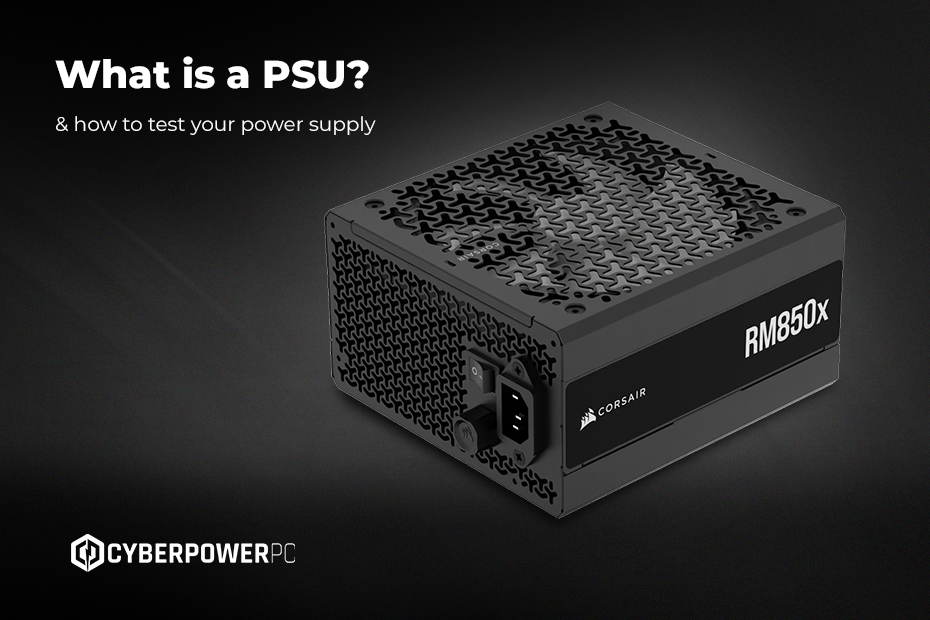
People normally spend hours agonising over which graphics card will give them the highest frame rates or how well it can run modded games. They take their time meticulously choosing a case that fits their aesthetic. Yet, when it comes to the PSU, the component that breathes life into your system, this attention to detail is missed. Many overlook this essential component and will just settle for the box that fits the wattage requirement.
The Power Supply Unit is often the most underappreciated component when it comes to creating a build. In fact, it is arguably the most critical part of your desktop or gaming PC, as it powers everything from the CPU to the graphics card. A high-quality PSU is vital to helping your PC run as stably as possible under heavy loads.
This guide covers everything you need to know about PSUs, from how they work to how to test them.
What is a PSU?
The PSU (Power Supply Unit) is an internal hardware component responsible for taking the electricity from your wall and converting it into a form your computer can actually use.
It’s basically like a translator for your PC: it takes the high-voltage AC (alternating current) power and converts it into the lower-voltage DC your PC requires.
What does a Power Supply do in a computer?
You might be wondering what the PSU actually does on a PC. It isn’t just a simple plug adapter: it’s a solid component that sits inside your PC!
- AC to DC Conversion: Converts 110V/230V AC into 3.3V, 5V, and 12V DC.
- Voltage Regulation: Ensures the power delivered is clean and stable, even if the electricity from your wall fluctuates.
- Protection Features: Shields your PC against power surges, short circuits, and over-voltage (OVP) or under-voltage (UVP) scenarios.
- Load Balancing: Distributes power across different “rails” (internal paths) to ensure the GPU and CPU get exactly what they need without overloading the circuit.
How to check what power supply you have
Unlike your CPU or RAM, you can’t see your PSU or the wattage through Windows software. To check your PSU, you have to open your PC case and check the actual unit. The sticker on the side will show the total wattage that you need.
While software like HWMonitor or OCCT can show you how much power your CPU and GPU are currently drawing, they cannot tell you the maximum capacity of your power supply.
How to test power supply
If you’re having trouble turning on your PC, perform these tests to see if your PSU is causing the problem.
The paperclip test
This confirms if the PSU can power on at all.
- Warning: Make sure that the PSU is unplugged from the wall when you start performing this test.
- Method: Disconnect all cables from your PC components. Bend a paperclip into a U-shape. On the 24-pin motherboard cable, insert one end into the Green wire pin and the other into any Black wire pin (Ground). Plug the PSU back into the wall and switch it on.
- Result: If the fan spins, the unit is alive. If not, it is likely dead.
Checking voltages with a multimeter
The paperclip test proves the PSU turns on; a multimeter proves it is safe.
- Warning: Never open the PSU casing. The capacitors inside hold a lethal charge even when unplugged.
- Method: Set your multimeter to DC Volts and check the 24-pin connector while the PSU is running:
- Yellow wires: Should be ~12V.
- Red wires: Should be ~5V.
- Orange wires: Should be ~3.3V.
- Result: If voltages fluctuate wildly, the unit is failing. Hearing a “click” but no boot usually means a safety protection (OCP) has tripped.
Signs you need a new power supply unit
- Random shutdowns: The PC shuts down for no reason during gameplay, but works fine when you’re on the desktop.
- Unstable voltages: Monitoring software shows the +12V rail dropping significantly under load.
- Coil whine: Loud buzzing that changes pitch with activity.
- Overheating: The PSU is hot to the touch or smells of burning plastic.
What power supply do I need?
The best way to check what PSU you need is to perform a wattage calculation. To do this, calculate the max draw of your CPU and GPU, then add 20% for headroom.
- Example: A high-end GPU (450W) + CPU (250W) needs at least an 850W or 1000W unit.
It’s always best to use a dedicated PSU calculator rather than guessing.
The power supply you need also depends on what you are using your PC for:
- Gaming: Prioritise strong +12V rails to handle the transient power spikes of modern GPUs.
- Workstations: Prioritise efficiency (Titanium rating) and reliability for 24/7 rendering tasks.
PSU efficiency & features
Efficiency ratings show how much power is wasted as heat. Higher-rated PSUs are more efficient, which reduces electricity costs and heat output:
- Bronze: Good for budget builds.
- Gold: The standard for gaming PCs (efficient and reliable).
- Platinum/Titanium: Best for high-end systems to save on electricity and reduce heat.
Modularity determines how the PSU cables are attached:
- Non-Modular: All cables are permanently attached. Harder to manage.
- Semi-Modular: Essential cables are attached; add others as needed.
- Fully Modular: Every cable detaches. Best for airflow and custom cables.
PSU FAQ’s
- Is 750W enough? For most mid-range builds (e.g., RTX 4070), yes. For top-tier cards, aim for 850W+.
- Does efficiency matter? Yes! Higher efficiency means less heat and lower energy bills.
- Can I reuse my old PSU? Only if it has the wattage and is in warranty. Never reuse old modular cables on a new unit; you will fry your parts.
Choosing the right PSU doesn’t just protect your PC components, but your overall investment in your system. If you are unsure which unit fits your specific rig, check out our PC finder tool or speak to our team for expert advice. Looking to find out more about PC parts? Make sure to visit our core knowledge hub and blogs page for more useful information, including our ultimate guide to gaming PC parts.