A 3k gaming rig means nothing if your monitor is stuck at a double-digit refresh rate. All that time and effort spent on finding the right gaming PC can go to waste if you don’t have the right monitor to really feel the difference.
But with so many options on the market, shopping for a monitor can raise more questions than answers. Why are certain displays so much more expensive than others? What is the difference between a 4k and 1080p monitor — and what does that even mean? In this guide, we’ll demystify some of your tech spec worries and explain the different types available, so you know how to choose a gaming monitor.
- Curved vs flat
- Size and aspect ratio
- Multi-monitor Setup
- Resolution
- Refresh rates
- Response times
- Panel types
- HDR
- Ports
- Speakers
- How much is a gaming monitor?
- Should I use a TV or a monitor for gaming?
Curved vs flat
The first decision gamers face when shopping for a new monitor is whether to go for a curved or flat screen. Curved monitors debuted in 2013 and have only grown in popularity since. But are curved monitors better for gaming? Most of the time, yes!
Curved monitors more closely match the shape of your eye, so a slightly curved display means light from the edges hits your eyes at roughly the same time as light from the centre. The result? Less eye strain and a noticeably more immersive experience. This is especially welcome in sweeping open-world games or first-person shooters, where having more of the battlefield in your peripheral vision can give you a big leg up against the competition.
That being said, flat monitors aren’t past it! They come with plenty of benefits, too. For example, they lend themselves much better to multi-monitor setups and compact spaces. They are usually the best choice for strategy, puzzle, and retro-style games, too, where having a straightforward, distortion-free view matters more than immersion. Flat monitors also tend to be more budget-friendly than their curved counterparts.
At the end of the day, the choice comes down to personal preference. Some people prefer the immersion a curved monitor provides, while others may lean towards games played best on a flat screen. Try out both monitor types before you buy to get a sense of which you prefer.
Sizes and aspect ratio
It’s easy to sneer at those who value size above all else. But the truth is, having a bigger display can make such a difference to gameplay aspects like input lag. Monitor sizes vary widely, from compact 24-inch panels all the way up to ultrawide 49-inch formats.
27 inches is the most popular size and works perfectly for most casual gamers. But for those who want serious immersion, a larger screen, like our 34″ MSI MAG Curved QD-OLED & Adaptive-Sync Monitor, can be the best size monitor for gaming. Bigger monitors also often come with higher resolutions, ranging from Full HD (1080p) to 1440p and even 4k, giving you sharper, more detailed visuals. However, smaller monitors, like our MSI 23.8″ PRO, have their perks too: they’re more budget-friendly, easier to fit on a desk, and can be more forgiving on lower-end graphics cards. These screens are perfectly suited for cosy, casual play and office work.
Size isn’t the only factor to consider: aspect ratio plays a big role too. Most monitors stick to the standard 16:9 aspect ratio, but ultrawide formats like 21:9 give you extra horizontal space. These wider monitors can really shine in first-person shooters, racing sims, or sprawling open-world games, giving you a tactical edge and a more cinematic feel.
Multi-monitor setups
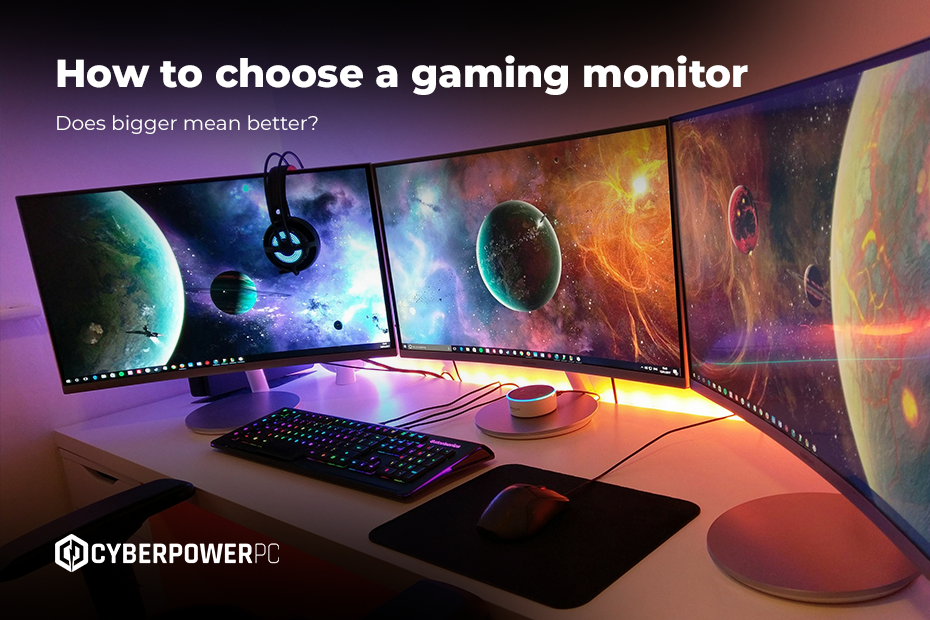
Some gamers prefer using multiple monitors. This setup is ideal if you’re streaming and need to keep an eye on your Discord or Twitch chat while gaming, using the second screen for recording, soundboards, webcams, and other background controls. For this kind of setup, flat monitors are usually the better choice, as curved screens can be harder to view side by side. Matching monitor sizes and resolutions also helps keep the experience consistent across screens.
If you’re planning to run multiple monitors, make sure your graphics card has enough outputs and that your desk has the space to support them. Many gamers also use monitor arms to make positioning easier and reduce desk clutter.
Resolution
Size helps your game feel big, but it’s resolution that makes your game feel sharp. A monitor’s native resolution refers to the number of physical pixels it can display. In most cases, monitors are 1920 × 1080 (full HD), 2460 × 1440 (QHD), 3840 × 2160 (4K), or, if you have deep pockets, 7680 × 4320 (8K). The bigger the screen and the closer you sit to it, the more those pixels matter. Otherwise, you end up with blocky, jagged edges. For most gamers, 1440p strikes the right balance of looking crisp enough without demanding a big GPU upgrade.
The best resolution rating also depends on your monitor size. Larger screens (32 inches and up) work best with 1440p or higher, because lower resolutions can look soft when stretched across a big display. Smaller monitors, like 24–27 inches, pair perfectly with 1080p, giving clean visuals without maxing out your GPU.
So, are 4K monitors worth it for gaming? They absolutely can be! If you prioritise ultra-detailed textures and cinematic visuals, 4K can make your game look truly stunning. Just bear in mind that more pixels means more horsepower. If your GPU struggles, you may need to downscale in-game or dial back settings to maintain smooth frame rates. Or, upgrade your GPU.
Refresh rates
When it comes to gaming, how fast your monitor reacts is just as important as how good it looks. That’s where refresh rates come in. Refresh rate in gaming monitors is measured in Hertz (Hz), which tells you how many frames your monitor can display per second. Most gaming monitors range from 60Hz to 240Hz.
But what Hz monitor is best for gaming? Well, higher is usually better as it gets you higher refresh rates, but the best option for you really depends on the games you prefer. Slower-paced games, like RPGs, strategy, or turn-based titles, are fine on 60Hz or 75Hz, whereas competitive shooters and racing games really benefit from 144Hz or above. Some high-end monitors also offer motion blur reduction modes (often called ULMB), which work best at higher refresh rates by flashing the backlight between frames to improve motion clarity.
One thing to watch: higher refresh rates often come at a cost, not just to your wallet but your resolution, too. For example, it’s easier to hit 240Hz at 1080p than at 4K. If you’re gaming at 4K, your monitor may be capped at 60Hz or 75Hz, so that leap to a “higher” refresh rate may not be worth it.
Response time
Response time measures how fast a pixel can change from one colour to another. Unlike refresh rates, lower is better, especially for fast games. Response time is measured in milliseconds: 6-8ms is common for a mid-range gaming PC, while ultra-fast PCs can get as low as 1ms.
Another factor that affects smoothness is adaptive sync. Technologies like G-Sync (NVIDIA), FreeSync (AMD), or Variable Refresh Rate (VRR on TVs) match your monitor’s refresh rate to the frames your GPU outputs. This smooths out stutter and screen tearing, giving you sleek motion without sacrificing performance. Just make sure that you go for a technology that matches your GPU’s manufacturer.
Panel types
When it comes to choosing a panel, you’ll be confronted by a whole world of acronyms. These refer to the fundamental technologies that power the monitor, each with its own strengths and weaknesses when it comes to speed, colour, brightness, and contrast.
TN
TN, or “Twisted Nematic” panels, tend to offer the very best in terms of refresh rates and input lag. They’re usually the cheapest option too. The downside? Colours look flatter, contrast is weaker, and the image can shift if you move your head even slightly. That said, they’re still a popular choice among esports players, as they’re about as responsive as it gets.
IPS
In-Plane-Switching (IPS) monitors offer vibrant colours and look great from every angle. They’re a go-to choice for gamers who prioritise image quality for visually rich games. However, they’re usually a bit slower than TN panels and can suffer from backlight bleed around the edges, which is more noticeable in dark scenes.
VA
Vertical Alignment (VA) panels sit somewhere between TN and IPS. They offer much better contrast than IPS, with deeper blacks and stronger shadows, while still delivering decent colours and performance. They’re fast enough for most gamers, but can suffer from ghosting in fast-moving scenes, particularly in darker areas. If you play a mix of genres, VA is often a safe middle ground.
OLED
OLED displays offer unparalleled contrast and black levels. Since every pixel is its own light source, there’s no backlight. That means that colours pop, motion looks incredibly smooth, and dark scenes look phenomenal. The downside? Over time, OLED displays can “burn-in” static images, like HUDs or taskbars, and leave a faint permanent mark on the screen. Luckily, features like screen dimming, pixel shifting, dark mode, and shorter screen timeouts can help reduce the risk.
HDR
High-Dynamic Range (HDR) is a fancy term for brighter highlights, deeper shadows, and richer colours. Certain parts of your screen can be cranked right up while others stay dark, making for a more cinematic gaming experience. TVs generally do this better than gaming monitors, as they get much brighter and can handle contrast better. But that doesn’t mean HDR on a monitor isn’t worth having. A good HDR gaming monitor can still make a noticeable difference to how games look.
When shopping around, pay close attention to peak brightness (measured in nits), contrast ratio, and panel type. OLED and VA panels tend to benefit most from HDR thanks to their deep blacks and strong contrast. IPS can look decent, but TN panels usually struggle to show a meaningful difference.
Ports
Speed and picture quality are crucial when choosing a gaming monitor, but the ports take your setup up a notch. Ports are what keep your PC connected to the monitor, and the type you choose can actually have a significant impact on refresh rate, resolution, and overall performance.
There are two main display ports to look out for:
- HDMI: This is the most common port: you’ll find it on almost every TV, console, and graphics card. It’s great for plug-and-play gaming and is usually the best option for consoles. The newest version, HDMI 2.1, can handle high resolutions and refresh rates. The slightly older HDMI 2.0 still supports 4K gaming, but only at 60Hz. HDMI is the oldest standard you’ll likely find, and is usually limited to 1080p or 4K at 30Hz. HDMI is fine for most console setups and casual gamers.
- DisplayPort: This is now the go-to choice for PC gamers. It generally supports higher refresh rates and resolutions than HDMI, making it ideal for 144Hz, 240Hz, and ultrawide setups. If you’re gaming on a PC and want the smoothest experience possible, DisplayPort is usually your best bet.
You can find out more about both of these ports in our DisplayPort and HDMI connectivity guide. There are also some old-school ports you may still find on more basic PCs or second-hand models, including DVI and VGA. However, these don’t really keep up with the technological advancements of modern gaming.
Finally, don’t forget about USB for your keyboard, mouse, and other peripherals, as well as audio and headset ports if you’re using external speakers.
Speakers
Do monitors actually have speakers? Some do, but they’re pretty basic. Even on high-end monitors, these built-in speakers won’t give you the rich, layered sound you get from a good set of external ones.
That said, this won’t matter to every gamer- especially if you prefer to wear a headset. If audio isn’t a huge part of your setup, built-in speakers are fine for a minimalist setup. But if you value beautiful soundtracks or impressive sound effects, you should invest in external speakers and/or headphones for your gaming monitor.
How much is a gaming monitor?
Just like gaming PCs and consoles, gaming monitors vary in price depending on quality and features. As a rough guide:
- £60 to £200: Simple but budget-friendly monitors that work for more casual gaming. Can usually support 1080p resolution and 60Hz to 75Hz refresh rates.
- £200 to £400: Mid-range monitors, perfect for most PC and console gamers. Usually offer 1440p resolution, 144Hz refresh rates, and better colours.
- £400+: This pricepoint is where you’ll find ultrawide screens, 4K resolution, OLED panels, and super-high refresh rates. This is the best option for serious, competitive gamers.
When it comes to choosing the right gaming monitor for your budget, you need to balance what you want with what you actually use. If you mostly play casual games, a mid-range monitor hits the sweet spot. But if you’re chasing a competitive edge, immersive visuals, or you want to future-proof your setup, it may be worth investing that bit extra. For more advice on all things budget, give our gaming PC budget guide a read.
Should I use a TV or a monitor for gaming?
Big TVs can be a tempting choice for gaming, especially if you already have one. But despite the convenience and huge screen, there are some trade-offs. Input lag tends to be higher on TVs, which can hurt fast-paced games. Refresh rates are usually lower, too, making motion look less smooth than a high-refresh monitor. Pixel density matters as well: on a very large TV, individual pixels are bigger, so images can look softer compared to a monitor of the same resolution.
On the plus side, TVs often come with better HDR, giving bright highlights and punchy colours. If you mostly play cinematic, slower-paced games or console titles from a distance, a large TV can work nicely. But for competitive PC gaming, a monitor wins hands down.
Choosing the right gaming monitor is a big step toward the ultimate setup, but it’s just one piece of the puzzle. From refresh rates to panel types, size to resolution, knowing what matters to you will help you get the most out of your games.Want to take your setup even further? Check out our best setup for gaming guide for tips on creating the perfect gaming environment, or dive into our PC buying guide if you’re looking for a whole new rig.