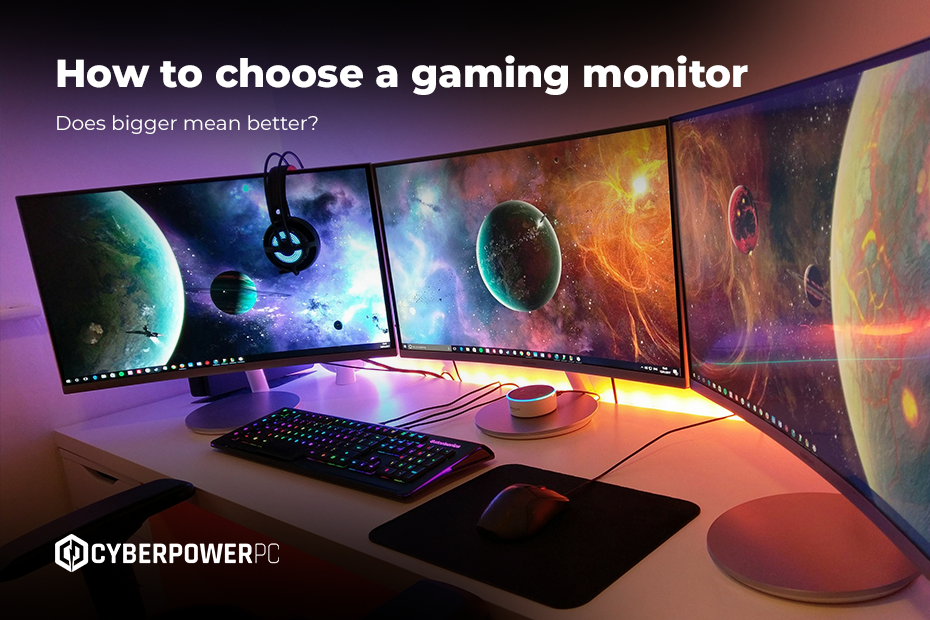
Choose a gaming monitor by matching three specifications to how you play: resolution to your screen size, refresh rate to your graphics card, and panel type to your priorities. For most gamers, a 27-inch 1440p monitor at 144Hz or higher on an IPS panel is the best balance of sharpness, speed, and price.
A 3k gaming rig means nothing if your monitor is stuck at a double-digit refresh rate. All that time and effort spent on finding the right gaming PC can go to waste if you don’t have the right monitor to really feel the difference.
But with so many options on the market, shopping for a monitor can raise more questions than answers. Why are certain displays so much more expensive than others? What is the difference between a 4k and 1080p monitor, and what does that even mean? In this guide, we’ll demystify some of your tech spec worries and explain the different types available, so you know how to choose a display for gaming.
- Curved vs flat
- Size and aspect ratio
- Multi-monitor Setup
- Resolution
- Refresh rates
- Response times
- Panel types
- HDR
- Ports
- Monitors for console gaming
- Speakers
- How much is a gaming monitor?
- Should I use a TV or a monitor for gaming?
Curved vs flat
The first decision gamers face when shopping for a new monitor is whether to go for a curved or flat screen. Curved monitors debuted in 2013 and have only grown in popularity since. But are curved monitors better for gaming? Most of the time, yes!
Curved monitors more closely match the shape of your eye, so a slightly curved display means light from the edges hits your eyes at roughly the same time as light from the centre. The result? Less eye strain and a noticeably more immersive experience. This is especially welcome in sweeping open-world games or first-person shooters, where having more of the battlefield in your peripheral vision can give you a big leg up against the competition.
That being said, flat monitors aren’t past it! They come with plenty of benefits, too. For example, they lend themselves much better to multi-monitor setups and compact spaces. They are usually the best choice for strategy, puzzle, and retro-style games, too, where having a straightforward, distortion-free view matters more than immersion. Flat monitors also tend to be more budget-friendly than their curved counterparts.
At the end of the day, the choice comes down to personal preference. Some people prefer the immersion a curved monitor provides, while others may lean towards games played best on a flat screen. Try out both monitor types before you buy to get a sense of which you prefer.
Sizes and aspect ratio
It’s easy to smirk at those who value size above all else. But the truth is, having a bigger display can make such a difference to gameplay aspects like immersion, field of view and how far you sit from the desk. Monitor sizes vary widely, from compact 24-inch panels all the way up to ultrawide 49-inch formats.
27 inches is the most popular size and works perfectly for most casual gamers. But for those who want serious immersion, a larger screen, like our 34? MSI MAG Curved QD-OLED & Adaptive-Sync Monitor, can be the best size monitor for gaming. Bigger monitors also often come with higher resolutions, ranging from Full HD (1080p) to 1440p and even 4k, giving you sharper, more detailed visuals. However, smaller monitors, like our MSI 23.8? PRO, have their perks too: they’re more budget-friendly, easier to fit on a desk, and can be more forgiving on lower-end graphics cards. These screens are perfectly suited for cosy, casual play and office work.
Size isn’t the only factor to consider: aspect ratio plays a big role too. Most monitors stick to the standard 16:9 aspect ratio, but ultrawide formats like 21:9 give you extra horizontal space. These wider monitors can really shine in first-person shooters, racing sims, or sprawling open-world games, giving you a tactical edge and a more cinematic feel.
Multi-monitor setups
A second screen is one of the most beneficial upgrades to your gaming setup. For streamers, it can display your Twitch chat, OBS, and soundboards; for gamers, it means keeping discord, a browser, or Spotify open without alt-tabbing out of a game every time.
Flat panels are commonly the better choice for multi-monitor use, as curved screens can be more awkward to align side by side and the curve fights against the angle you view a secondary screen from. Matching resolutions across screens keeps the scaling consistent, and matching refresh rates avoids potential stutters that mismatched displays can introduce.
Can you run three or more monitors?
Most current graphics cards support up to four simultaneous displays, usually through three DisplayPort outputs and one HDMI, so a triple monitor setup is more than comfortable for a modern GPU. Check the output count and types on your specific card before buying, as adapters between standards can have their own limitations.
Additionally, three 27-inch monitors would require approximately 1.8 metres of desk width, so measure before committing. A triple monitor arm or VESA mount can save considerable space over three separate stands. Bear in mind that only the centre screen sits directly in front of you, so the outer two are best used for subtasks.
Do all three monitors need to match?
If you require gaming across all three as one wide image, using NVIDIA Surround or AMD Eyefinity, yes: identical resolution and refresh rate are effectively required, and identical models are strongly preferable. For using them as separate screens, they do not need to match at all, though mixing different monitor brands means visibly different colour temperature and brightness between panels, which can be distracting to some.
Why use a vertical monitor?
Rotating a secondary monitor to be vertical is one of the most useful, and least expensive setup changes you can make. A vertical panel suits anything that scrolls: Discord and Twitch chat during a stream, social feeds, code, documents, and long articles. A vertical 24-inch screen displays far more of a chat window than a landscape screen of the same size, without taking up the desk width of a second horizontal monitor.
There are two things to check before buying, however. First, the stand needs to rotate, or the monitor needs a VESA mount, as many budget displays offer tilt only. Second, and more importantly, use an IPS panel for vertical orientation. Rotating a VA or TN panel by 90 degrees puts its weakest viewing angle along the horizontal axis, which creates a visible brightness and colour gradient from one side of the screen to the other. IPS panels look consistent from any angle and rotate without penalty.
If you plan to leave a static chat window or taskbar on a vertical screen for extended periods, do be cautious with OLED, as static elements can cause burn-in.
Resolution
Size helps your game feel big, but it’s resolution that makes your game feel sharp. A monitor’s native resolution refers to the number of physical pixels it can display. In most cases, monitors are 1920 × 1080 (full HD), 2560 × 1440 (QHD), 3840 × 2160 (4K), or, if you have deep pockets, 7680 × 4320 (8K). The bigger the screen and the closer you sit to it, the more those pixels matter. Otherwise, you end up with blocky, jagged edges. For most gamers, 1440p strikes the right balance of looking crisp enough without demanding a big GPU upgrade.
The best resolution rating also depends on your monitor size. Larger screens (32 inches and up) work best with 1440p or higher, because lower resolutions can look soft when stretched across a big display. The relationship that actually matters here is pixel density, which is essentially how many pixels are packed into each inch of screen. 1080p looks sharp at 24 inches and starts to look soft by 27. 1440p is the sweet spot at 27 inches and still holds up well at 32. 4K comes into its own from 32 inches upward, where 1440p begins to lose definition. This is why 27-inch 1440p is the most recommended combination, as it is the point where sharpness, graphics card demand, and price all line up.
So, are 4K monitors worth it for gaming? They absolutely can be! If you prioritise ultra-detailed textures and cinematic visuals, 4K can make your game look truly stunning. Just bear in mind that more pixels means more horsepower. If your GPU struggles, you may need to downscale in-game or dial back settings to maintain smooth frame rates. Or, upgrade your GPU.
Refresh rates
When it comes to gaming, how fast your monitor reacts is just as important as how good it looks. That’s where refresh rates come in. Refresh rate in gaming monitors is measured in Hertz (Hz), which tells you how many frames your monitor can display per second. Most desktop monitors for gaming range from 60Hz to 240Hz.
But what Hz monitor is best for gaming? Well, higher is usually better as it gets you higher refresh rates, but the best option for you really depends on the games you prefer. Slower-paced games, like RPGs, strategy, or turn-based titles, are fine on 60Hz or 75Hz, whereas competitive shooters and racing games really benefit from 144Hz or above. Some high-end monitors also offer motion blur reduction modes (often called ULMB), which work best at higher refresh rates by flashing the backlight between frames to improve motion clarity.
One thing to watch: higher refresh rates often come at a cost, not just to your wallet but your resolution, too. For example, it’s easier to hit 240Hz at 1080p than at 4K. If you’re gaming at 4K, your monitor may be capped at 60Hz or 75Hz, so that leap to a “higher” refresh rate may not be worth it.
Response time
Response time measures how fast a pixel can change from one colour to another. Unlike refresh rates, lower is better, especially for fast games. Response time is measured in milliseconds: 6-8ms is common for a mid-range monitor for games while the fastest panels can get as low as 1ms.
Most modern monitors support VESA Adaptive-Sync, which works with both NVIDIA and AMD graphics cards, so matching brands is no longer necessary. Look for G-Sync Compatible certification if you run an NVIDIA card and want validated performance, or FreeSync Premium for AMD. Full hardware G-Sync modules are now rare and mostly reserved for high-end displays.
Panel types
When it comes to choosing a panel, you’ll be confronted by a whole world of acronyms. These refer to the fundamental technologies that power the monitor, each with its own strengths and weaknesses when it comes to speed, colour, brightness, and contrast.
TN
TN, or “Twisted Nematic” panels, tend to offer the very best in terms of refresh rates and input lag. They’re one of the more pocket-friendly options. The downside? Colours look flatter, contrast is weaker, and the image can shift if you move your head even slightly. That said, they’re still a popular choice among esports players, as they’re about as responsive as it gets.
IPS
In-Plane-Switching (IPS) monitors offer vibrant colours and look great from every angle. They’re a go-to choice for gamers who prioritise image quality for visually rich games. However, they’re usually a bit slower than TN panels and can suffer from backlight bleed around the edges, which is more noticeable in dark scenes.
VA
Vertical Alignment (VA) panels sit somewhere between TN and IPS. They offer much better contrast than IPS, with deeper blacks and stronger shadows, while still delivering decent colours and performance. They’re fast enough for most gamers, but can suffer from ghosting in fast-moving scenes, particularly in darker areas. If you play a mix of genres, VA is often a safe middle ground.
OLED
OLED displays offer unparalleled contrast and black levels. Since every pixel is its own light source, there’s no backlight. That means that colours pop, motion looks incredibly smooth, and dark scenes look phenomenal. The downside? Over time, OLED displays can “burn-in” static images, like HUDs or taskbars, and leave a faint permanent mark on the screen. Luckily, features like screen dimming, pixel shifting, dark mode, and shorter screen timeouts can help reduce the risk.
HDR
High-Dynamic Range (HDR) is a fancy term for brighter highlights, deeper shadows, and richer colours. Certain parts of your screen can be cranked right up while others stay dark, making for a more cinematic gaming experience. TVs generally do this better than a desktop monitor, as they get much brighter and can handle contrast better. But that doesn’t mean HDR on a monitor isn’t worth having. A good HDR monitor for gaming can still make a noticeable difference to how games look.
When shopping around, pay close attention to peak brightness (measured in nits), contrast ratio, and panel type. OLED and VA panels tend to benefit most from HDR thanks to their deep blacks and strong contrast. IPS can look decent, but TN panels usually struggle to show a meaningful difference.
Ports
Speed and picture quality are crucial when choosing a gaming monitor, but the ports take your setup up a notch. Ports are what keep your PC connected to the monitor, and the type you choose can actually have a significant impact on refresh rate, resolution, and overall performance.
There are two main display ports to look out for:
- HDMI: The most common port, found on almost every TV, console, and graphics card. HDMI 2.1 supports 4K at 120Hz and is essential for console gaming, while the older HDMI 2.0 caps 4K at 60Hz. This distinction matters more than any other port specification: a monitor advertised as “4K 144Hz” that only has HDMI 2.0 will run a PS5 or Xbox Series X at 60Hz.
- DisplayPort: This is now the go-to choice for PC gamers. It generally supports higher refresh rates and resolutions than HDMI, making it ideal for 144Hz, 240Hz, and ultrawide setups. If you’re gaming on a PC and want the smoothest experience possible, DisplayPort is usually your best bet.
You can find out more about both of these ports in our DisplayPort and HDMI connectivity guide. There are also some old-school ports you may still find on more basic PCs or second-hand models, including DVI and VGA. However, these don’t really keep up with the technological advancements of modern gaming.
Finally, don’t forget about USB for your keyboard, mouse, and other peripherals, as well as audio and headset ports if you’re using external speakers.
Monitors for console gaming
Can I use a gaming monitor with a PS5 or Xbox?
Yes, and for competitive console gaming a monitor can be the better choice for your gaming setup. Consoles connect over HDMI rather than DisplayPort, which changes what you should look for: the port specification becomes the more important thing on your spec sheet, as this determines whether you can access the console’s full output.
What should I look for in a console display for gaming?
HDMI 2.1 is non-negotiable for 4K gaming. The PlayStation 5 and Xbox Series X both output 4K at up to 120Hz, but only over HDMI 2.1. A monitor with HDMI 2.0 will limit you to 4K at 60Hz regardless of what its claimed refresh rate is, because those higher rates are only achievable through DisplayPort, which consoles are unable to use. This is the most frequent and expensive mistake console buyers tend to make.
Check 1440p support. Both the PS5 and Xbox Series X and S output at 1440p, which makes a 27-inch 1440p monitor a great console choice: sharper than 1080p, far less demanding than 4K, and easier to reach high refresh rates. Not every monitor accepts a 1440p signal cleanly from a console, so it is worth double-checking this.
Look for VRR and ALLM. Variable Refresh Rate smooths out the frame rate dips that consoles experience in demanding titles, and Auto Low Latency Mode switches the display into its fastest mode automatically when it detects a game. Both VRR and ALLM are supported by current consoles and both make a considerable difference without any setup.
Think about sound before you buy. Current consoles route audio through HDMI and have no separate optical output, which means a monitor with no speakers or headphone jack leaves you with no straightforward way to hear your game or voicechat. Built-in speakers can matter far more for console gaming, whereas a headset is the norm for PC gaming. However, the games you play also may have an effect on your choice. If you plan on playing team based shooters like Rainbow Six Siege or Overwatch, you may wish to communicate with your team via voicechat – where a headset would be needed.
Match the size to your seating distance. A 27-inch or 32-inch monitor works well at desk distance. If you prefer to sit further back on a sofa, a larger display makes more sense, making a TV the better option for you.
Console gaming: monitor or TV?
For fast-paced, competitive console gaming, a monitor wins on the things that decide outcomes: lower input lag, higher refresh rates, and greater pixel density at close viewing distance. A monitor is also easier to fit into a desk setup where you sit within a metre or so of the screen.
A TV wins on scale, HDR performance, and comfort. Modern TVs reach far higher peak brightness than the majority of monitors, which makes HDR content genuinely more impressive, and a large screen viewed from a sofa is a better fit for cinematic single-player games. Recent gaming TVs have also closed a lot of the input lag gap through game modes and HDMI 2.1 support.
Choose a monitor if your console sits on or near a desk and you play competitively. Choose a TV if your console sits in a living room and you play from the sofa. If you like both, prioritise the screen you would use the most.
Speakers
Do monitors actually have speakers? Some do, but they’re pretty basic. Even on high-end monitors, these built-in speakers won’t give you the rich, layered sound you get from a good set of external ones.
That said, this won’t matter to every gamer- especially if you prefer to wear a headset. If audio isn’t a huge part of your setup, built-in speakers are fine for a minimalist setup. But if you value beautiful soundtracks or impressive sound effects, you should invest in external speakers and/or headphones for your gaming screen.
How much is a gaming monitor?
Just like gaming PCs and consoles, gaming monitors vary in price depending on quality and features. As a rough guide:
- £60 to £200: Simple but budget-friendly monitors that work for more casual gaming. Can usually support 1080p resolution and 60Hz to 75Hz refresh rates.
- £200 to £400: Mid-range monitors, perfect for most PC and console gamers. Usually offer 1440p resolution, 144Hz refresh rates, and better colours.
- £400+: This pricepoint is where you’ll find ultrawide screens, 4K resolution, OLED panels, and super-high refresh rates. This is the best option for serious, competitive gamers.
When it comes to choosing the right gaming PC monitor for your budget, you need to balance what you want with what you actually use. If you mostly play casual games, a mid-range monitor hits the sweet spot. But if you’re chasing a competitive edge, immersive visuals, or you want to future-proof your setup, it may be worth investing that bit extra. For more advice on all things budget, give our gaming PC budget guide a read.
Should I use a TV or a monitor for gaming?
Big TVs can be a tempting choice for gaming, especially if you already have one. But despite the convenience and huge screen, there are some trade-offs. Input lag tends to be higher on TVs, which can hurt fast-paced games. Refresh rates are usually lower, too, making motion look less smooth than a high-refresh monitor. Pixel density matters as well: on a very large TV, individual pixels are bigger, so images can look softer compared to a monitor of the same resolution.
On the plus side, TVs often come with better HDR, giving bright highlights and punchy colours. If you mostly play cinematic, slower-paced games or console titles from a distance, a large TV can work nicely. But for competitive PC gaming, a monitor wins hands down.
Choosing the right gaming monitor is a big step toward the ultimate setup, but it’s just one piece of the puzzle. From refresh rates to panel types, size to resolution, knowing what matters to you will help you get the most out of your games.Want to take your setup even further? Check out our best setup for gaming guide for tips on creating the perfect gaming environment, or dive into our PC buying guide if you’re looking for a whole new rig.
Frequently Asked Questions
What Is the Best Gaming Monitor Size?
27 inches is the best gaming computer screen size for most gamers, offering a large image at desk distance without the need to move your head to track the edges of the screen. 24 inches suits competitive play, where the whole screen sits within your field of view, and 32 inches or ultrawide formats suit immersive single-player gaming.
Is 1440p or 4K Better For Gaming?
1440p is the more common choice for most gamers, as it looks noticeably sharper than 1080p while demanding far less from your graphics card than 4K. 4K is a better choice if you like to play visually rich single-player games, have a card capable of driving it, and sit close to a screen of 32 inches or larger.
How Much Should I Spend On a Gaming Monitor?
For a 1440p monitor at 144Hz or higher, expect prices of £200 to £400, which is the range that suits most gamers. Below £200 you are into 1080p at 60Hz to 75Hz, suitable for casual play. Above £400 you find OLED panels, 4K, ultrawide formats, and refresh rates of 240Hz and beyond, designed for competitive gaming.
What Graphics Card Do I Need For a 1440p 144Hz Monitor?
A display is only as good as the frame rate feeding it, so match the two. For 1440p at 144Hz in modern games, an RTX 5070 or Radeon RX 9070 class card is a sensible target, while competitive eSports titles at the same settings reach those frame rates on considerably less. Our gaming PC range covers every tier.
Do I Need a 240Hz Monitor?
You need a 240Hz monitor only if you play competitive shooters, and your PC can actually sustain 240 frames per second in them. For most gamers, 144Hz to 165Hz delivers the majority of the benefit over 60Hz, and the money saved is better spent on resolution or panel quality.
Is IPS or OLED Better For Gaming?
OLED offers stronger contrast, deeper blacks, and faster pixel response, making it the better panel for image quality and motion clarity. IPS is brighter, cheaper, and has no burn-in risk, which makes it a safer choice if the same monitor also handles work with static elements on screen for long sessions.
Does Monitor Response Time Actually Matter?
Response time matters, but less than the marketing suggests. Quoted figures such as 1ms are measured under the best-case conditions, and often do not showcase the real-world performance. Panel type is the more reliable indicator: OLED responds almost instantly, fast IPS is excellent, and VA can show ghosting in dark, fast-moving scenes.