
Last updated:
If your gaming PC isn’t performing as well as it has previously, or you’re experiencing graphics, audio or connectivity problems, outdated device drivers could be the cause. Knowing how to update drivers is a very important part of keeping your gaming PC running smoothly, but where do you start?
Whether you want to update your graphics driver, check your CPU drivers or simply make sure Windows has the latest hardware updates, here’s everything you need to know.
What is a device driver?
A device driver is a small piece of software that allows your OS (Operating System), such as Windows, to communicate with your computer’s hardware. Your graphics card, processor, motherboard, network adapter and sound devices all have individual drivers they rely on to function properly.
Drivers can be thought of as translators between your OS and your hardware. Without them, your operating system wouldn’t know how to communicate with individual components properly.
Manufacturers often release updated drivers to improve compatibility, fix bugs, address security vulnerabilities, as well as introduce new features.
Why is it important to keep your drivers updated?
Keeping your PC drivers updated can help:
- Improve performance: Graphics driver updates can include optimisations for the latest and most demanding games.
- Fix bugs: Updates can resolve crashes, stuttering, audio problems and connectivity issues.
- Improve compatibility: New drivers help your hardware work with newer games, applications and Windows updates.
- Improve security: Some driver updates address vulnerabilities that could potentially affect your system.
- Unlock new features: Manufacturers typically introduce additional hardware functionality through driver updates.
You don’t technically need to install every single new driver immediately. If your PC is working perfectly, there’s usually little reason to update a driver, unless the manufacturer directly recommends it.
How to Update Drivers on Windows 11
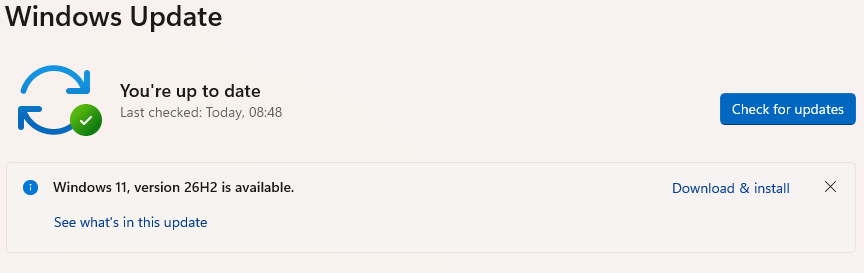
The easiest way to update most hardware drivers is through Windows Update.
Follow these steps:
- Open Start and select Settings.
- Select Windows Update.
- Click Check for updates.
- Allow Windows to download and install any available updates.
- For additional drivers, navigate to Advanced options > Optional updates.
- Expand Driver updates, select the updates you need and click Download & install.
- Restart your PC if you’re prompted to.
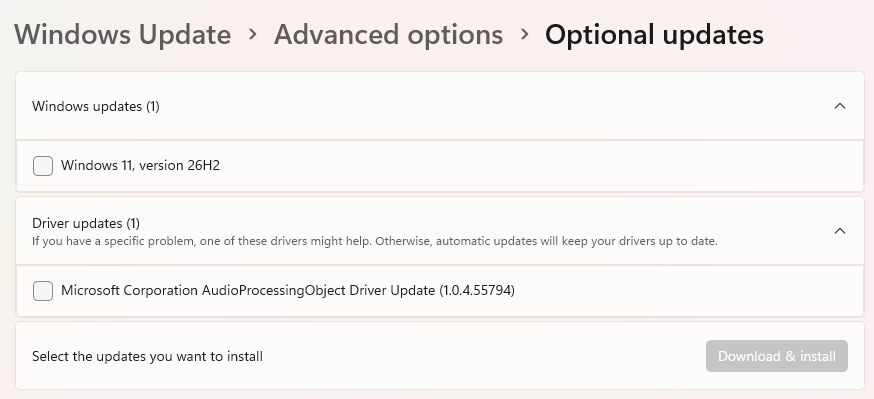
Windows automatically installs many recommended drivers, but optional driver updates require manual selection.
Alternatively, you can use Device Manager:
- Right-click the Start button and select Device Manager.
- Find the hardware component you want to update.
- Right-click it and select Update driver.
- Choose Search automatically for drivers.
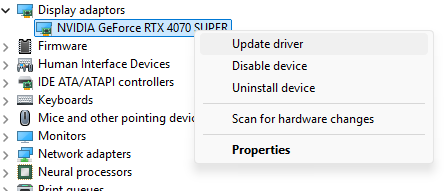
If Windows is unable to find a newer driver, check the manufacturer’s official website.
How to Update Your Graphics Card Drivers
Your graphics card (GPU) is especially important for gaming, making graphics driver updates worth checking the most often.
The process depends on which graphics card you have.
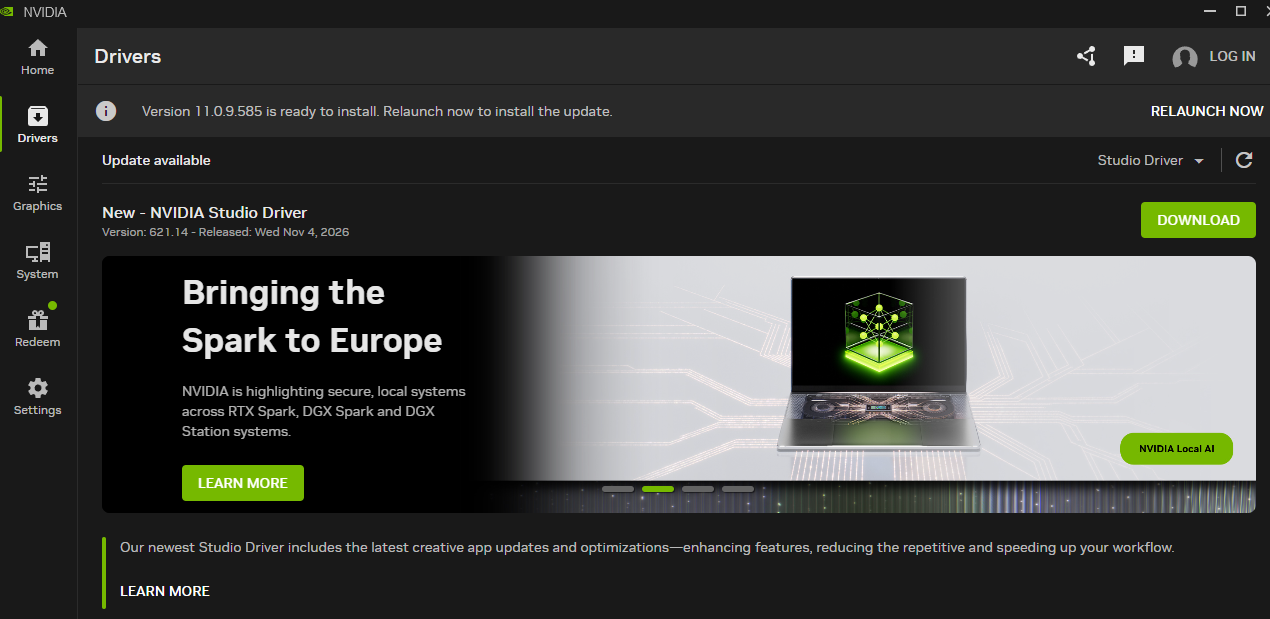
NVIDIA graphics drivers
If you have a NVIDIA GeForce graphics card:
- Download and open the official NVIDIA App.
- Navigate to the Drivers section.
- Check for available driver updates.
- Download and install the recommended driver.
- Restart your PC if prompted to.
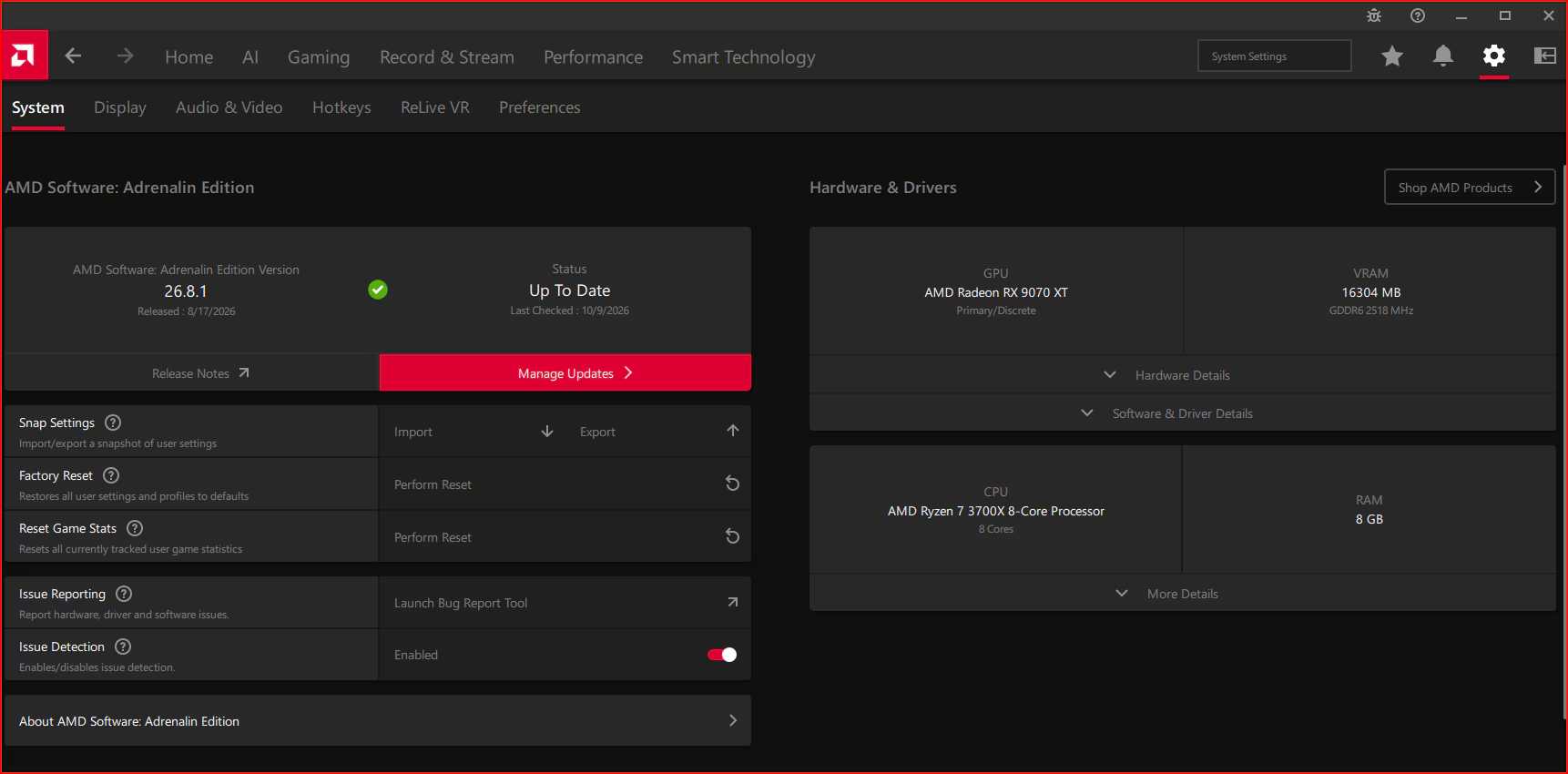
AMD graphics drivers
For AMD Radeon graphics cards:
- Download AMD Software: Adrenalin Edition from AMD’s official website.
- Open the software and check for available updates.
- Download and install the latest compatible driver.
- Restart your PC if prompted to.
Both manufacturers give the official tools you need to make updating graphics drivers simple and straightforward.
How to Check Which Drivers Are Currently Installed
Do you need to know how to check whether a driver is out of date? You can check its version through Windows:
- Right-click Start and open Device Manager.
- Expand the category for the hardware you want to check.
- Right-click the device and select Properties.
- Open the Driver tab.
- Note the Driver Version and Driver Date.
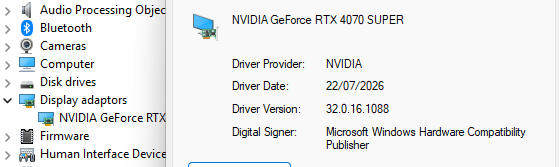
Cross-reference these details with the latest compatible driver listed on the manufacturer’s official website. A newer date isn’t immediately better, so always compare the actual version numbers and release notes.
How to Update Other Hardware Drivers
Graphics cards aren’t the only components that need drivers. Here’s where to find updates for other important hardware:
- CPU and chipset drivers: AMD Ryzen users can download chipset drivers from AMD. Intel users can find the relevant chipset and hardware software through Intel’s Download Centre. Most processors don’t actually need a separate CPU driver.
- Motherboard drivers: Visit your motherboard manufacturer’s support page for chipset, audio, LAN and Wi-Fi drivers.
- Audio drivers: Check your motherboard or sound card manufacturer’s website.
- Network drivers: Locate your Ethernet or Wi-Fi adapter through Device Manager and check the manufacturer’s support page.
Always make sure you’re downloading drivers that match the exact hardware model you own, as well as your Windows (or other OS) version.
Where is the safest place to download drivers?
The safest place to download drivers is always directly from the hardware manufacturer.
We recommend using:
- NVIDIA’s official driver downloads and NVIDIA App.
- AMD’s official Drivers and Support website.
- Intel’s official Download Centre.
- Your motherboard manufacturer’s support page.
- Windows Update for recommended hardware drivers.
If you own a CyberPowerPC UK system, you can also visit our Drivers and Software Downloads FAQ for specific assistance. Ensure to avoid any unfamiliar third-party download websites. Incorrect or malicious drivers can cause system instability, crashes and severe security problems.
Should I use a driver updater or update the drivers myself?
Driver updater software can make identifying and installing updates a lot easier, especially if you have several different hardware components. However, you don’t really need one.
Windows Update and official manufacturer applications like the NVIDIA App already give you reliable ways to find compatible drivers. Third-party driver updaters can sometimes recommend unnecessary updates, install incorrect versions and overcharge you for a process that takes only a few minutes.
At CyberPowerPC UK, we recommend sticking to Windows Update and official manufacturer tools wherever possible. You’ll have far more control over what actually gets installed and where your drivers come from.
What about BIOS updates?
BIOS updates are typically confused with driver updates, but they’re far from the same thing. Your BIOS (or UEFI firmware) helps your motherboard to initialise hardware before Windows starts. Manufacturers sometimes release BIOS updates to improve compatibility, stability and hardware support.
Unlike regular driver updates, BIOS updates require an extra layer of care. Installing an incorrect BIOS or interrupting the update can stop your PC from booting entirely. Only update your BIOS when there’s a genuine reason to do so, and always follow your motherboard manufacturer’s instructions. If you are completely uncertain about BIOS updates, it is best to get in touch with a professional, such as our service team, who will be able to advise.
What should I do if a driver update causes problems?
Sometimes, a new driver can introduce compatibility issues or cause unexpected crashes.
If you’ve recently updated a driver and started experiencing problems a short while after, Windows allows you to roll back to the previous version:
- Open Device Manager.
- Right-click the affected component and select Properties.
- Open the Driver tab.
- Select Roll Back Driver, if available.
- Follow the instructions and restart your PC.
If you’re still experiencing problems, our CyberPowerPC support team can help you troubleshoot your system.
Frequently Asked Questions
How often should I update my PC drivers?
Check for important driver updates frequently, especially for your graphics card. You don’t technically need to install every individual release if your PC is still working correctly.
How do I know if my drivers are out of date?
Open Device Manager, select your hardware and check the driver version. Compare this against the newest compatible release published on the manufacturer’s official website.
Does Windows Update automatically update drivers?
Yes. Windows Update automatically downloads and installs many recommended hardware drivers. Additional optional driver updates may need to be selected manually.
Can outdated drivers affect my gaming performance?
Outdated graphics drivers can lead to compatibility issues, crashes and reduced performance in certain games. Updating your driver to a more suitable and modern release can resolve these problems.
Do I need to update CPU drivers?
Most CPUs don’t need separate drivers. However, motherboard chipset drivers are important and should be obtained from AMD, Intel or your motherboard manufacturer, depending on what your system has.