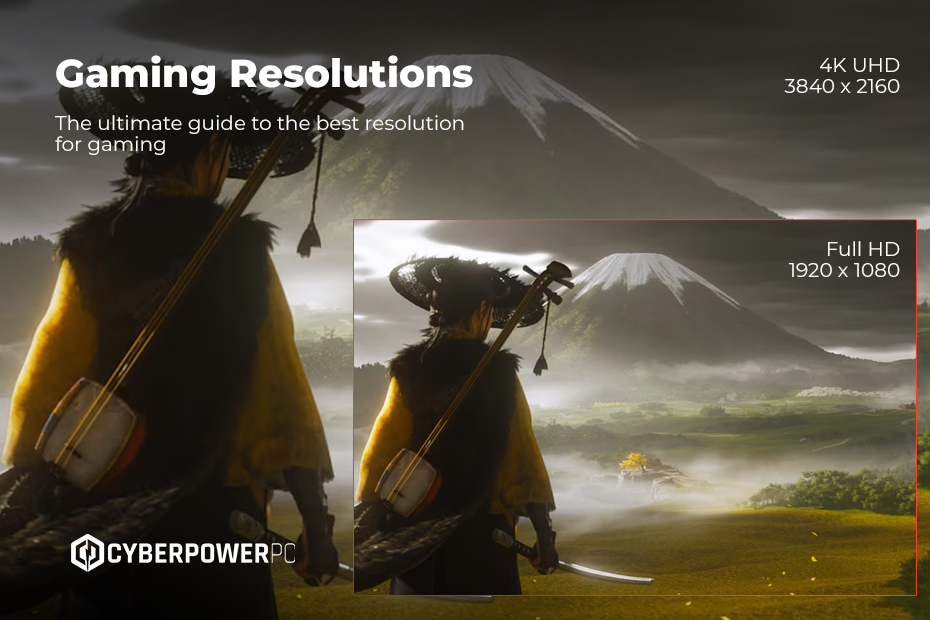
If you’re grinding ranked or diving into deep immersive open worlds like Skyrim and FF14, screen resolution plays a massive role in how your game looks and feels. With so many different display options
This guide breaks down everything you need to know about screen resolutions, from what they mean to which ones are ideal for competitive players, streamers, and casual gamers alike. 1080p, 1440p, 4K, 8K and even ultrawide or stretched setups, it can be tough to know what’s best for your rig and playstyle.
In this guide, we’ll cover::
- What is my screen resolution? How to check your current setup
- Why screen resolution matters for gaming
- Breaking down 2K, 4K, and 8K resolution: Understanding pixel counts
- Best screen resolution for different setups
- Best screen resolution for popular games
What is my screen resolution? How to check your current res
Screen resolution refers to the number of pixels in each part of your screen that can be displayed (Width x Height). For example, 1920 x 1080 means there are 1,920 pixels horizontally and 1,080 pixels vertically. Back in the day, on old CRT’s, you would be able to see the
How to check:
- Windows: Right-click desktop > Display settings > Display resolution.
- macOS: Apple Menu > System Settings > Displays.
- Monitor Menu: Most monitors have a physical “Menu” or “OSD” button that displays the current input resolution.
- Online Tools: Websites like WhatIsMyScreenResolution.org can detect it automatically.
How to tweak your resolution
On Windows 10 & 11
- Find a blank spot on your desktop, right-click it, and hit Display settings.
- Look for the Scale & layout section.
- Click the box under Display resolution to see your options.
- Pick the one you want. Pro tip: Usually, the one marked (Recommended) will give you the sharpest picture because it matches your monitor perfectly.
- Your screen might flicker for a second, just click Keep changes once it looks right.
On macOS
- Head up to the Apple menu in the corner and click System Settings.
- In the sidebar, click Displays.
- If you have more than one screen, click the one you’re trying to fix at the top.
- You’ll see a row of thumbnails ranging from “Larger Text” to “More Space.” Click through them to see what feels best for your eyes.
In-Game Settings
If your desktop looks great but your game feels “off” (blurry or laggy), the game’s internal settings probably aren’t synced up.
- Open up the game’s Settings or Options menu.
- Head over to the Video or Graphics tab.
- Check your Display Mode first. Setting this to Fullscreen usually gives you the most control over your resolution and often boosts your FPS.
- Find the Resolution slider or dropdown and set it to match your monitor.
- Don’t forget to hit Apply or Save, most games won’t update until you do!
Why screen resolution matters for gaming
These are the main reasons why you should care about your screen resolution. It legit changes the way everything looks on your screen and how you perceive graphics.
- Everything looks crispy and sharp. When you’re going from 1080p to 1440p or 4K you will get that “aha!” moment and wonder why you were playing on a low res screen to begin with. The higher res gets rid of those fuzzy, jagged edges (aliasing) and makes textures look like actual materials, wood looks like wood, and metal looks like metal, instead of just blurry shapes that the wrong res would get you.
- You’ll spot enemies sooner. If you’re playing at 1080p, a sniper across the map might look like a single flickering dot. At 4K, you can actually see their head peeking over the cover. It saves you from squinting and helps you react way faster.
- More room to breathe. Higher resolution doesn’t just make things clearer; it gives you more “screen real estate.” Your mini-maps, health bars, and inventory menus won’t feel like they’re cluttering up the middle of the screen, giving you a better view of the actual action.
- Content that actually looks professional. If you’re a streamer or a creator, recording in a higher resolution is a game-changer. It gives you “cleaner” footage that doesn’t fall apart when you zoom in for an edit or when the platform compresses your video.
- Future-proofing your setup. While 1080p is still the “standard,” the world is moving fast. 1440p has become the new “sweet spot” for most gamers in 2026, and 4K is rapidly becoming the benchmark for high-end builds. If you’re buying a monitor today, looking ahead will save you from needing an upgrade in twelve months.
Breaking down 2K, 4K & 8K resolution: What does it mean?
- You’ll hear these terms thrown around constantly, but here is what they actually mean for your eyes (and your hardware):2K (1440p / QHD): This is the good middle ground. It’s a lot sharper than standard 1080p but won’t make your GPU die on itself. It’s perfect for 27-inch monitors where 1080p starts to look a bit “blocky.”
- 4K (UHD): The heavyweight champion. It packs four times the pixels of 1080p. Everything is pin-sharp, and you get loads of screen real estate, but you’ll need a serious rig to keep it running smoothly.
- 8K: This is the extreme end of the scale. While the clarity is mind-blowing, very few games actually support it natively without a struggle. It’s more of a “look what I can do” resolution for now, most of us don’t need to worry about this yet.
Best resolution for different gaming setups
The General Rule of Thumb
- 1080p (FHD): Still the absolute go-to for eSports. If you’re playing on a budget or you’re a frame-rate snob chasing those 540Hz+ refresh rates, this is your home. It’s all about pure, raw speed here.
- 1440p (QHD): The true “Goldilocks” zone for 2026. With the mid range 50 series cards, 1440p has become the standard for most games and gamers. It is a perfect mix of “Jesus, that looks good” and “this feels incredibly smooth.”
- 4K (UHD): This used to be a struggle to get too, but if you’ve bagged yourself a top of the range GPU (like the 5080 or 5090), 4K is no longer an issue! These cards are built to handle high-refresh rates and 4K gaming without overworking themselves. If you’ve got the hardware, you might as well take advantage of it.
Gaming Laptops
When it comes to a laptop it’s all about getting the right balance, the screens on laptops are physically smaller so you most likely won’t get massive resolutions!
- 1080p: Brilliant for budget builds and saving battery life. If you’re gaming on the go, this keeps things running cool.
- 1440p: The “sweet spot” for high-end laptops in 2026. It looks incredibly crisp on a 15 or 17-inch screen.
- 4K: Skip it for gaming. It’ll tank your battery and you won’t see much difference. The only reason I can recommend you getting a 4K screen is if you do Graphic Design or any sort of design work.
Gaming PCs
With the RTX 50-series now out, the game has changed when it comes to getting the right res
- 1440p: This is now the standard for mid-to-high-end builds. Even the “entry-level” 50-series cards can absolutely smash 1440p gaming these days.
- 1080p: Best kept for budget rigs or the eSports crowd who want 500+ FPS.
- 4K: This is where the RTX 5080 and 5090 really shine. These cards are finally making high-refresh 4K gaming feel effortless.
Ultrawide Monitors (The IMAX looking ones)
If you want to feel like you’ve been teleported into the game you’re playing and not use a VR headset, an ultrawide monitor is a game-changer for real.
- Common Res: You’ll usually see 3440 x 1440 or the massive 5120 x 1440 on these ultra wide monsters!
- The Perk: You get a much wider field of view, which is incredible for racing sims or open-world RPGs. Like Skyrim
- The Catch: Some games (looking at you, Valorant) still don’t fully support it and might give you black bars on the side to keep the competitive playing field level.
For the Streamers
Remember, your “play” resolution and your “stream” resolution don’t have to be the same.
- Most folks play at 1440p but downscale their stream to 1080p. This gives you a great experience at your desk while keeping the stream bitrate manageable so your viewers’ internet doesn’t catch fire.
For the Content Creators
If you’re editing video, more pixels equal more power.
- 4K is king here. It lets you crop down all your footage without it looking really blurry!
- Don’t forget the colour: If you’re serious about editing, resolution is only half the battle! you’ll want a monitor with great colour accuracy (IPS or OLED) just so you get the most colour accurate pixels on your screen.
What should you use for these games?
- Valorant & CS2: Stick to 1080p. It’s all about those frame times and low latency. Many pros even “stretch” lower resolutions to make targets look wider.
- Fortnite: 1440p is the best of both worlds. It looks fantastic but it will also allow you to get those high FPS resolutions to make sure you’re just a step ahead of the game.
- Call of Duty (Warzone): 1440p. The maps are massive, and you need the extra pixel density to spot a sniper peeking over a ridge three miles away.
- Cyberpunk 2077 & Elden Ring: 4K. If you’ve got a 50-series card, crank it up. These worlds are meant to be seen in full, glorious detail.
- League of Legends: 1440p. It cleans up the UI and gives you a much better view of the team-fight chaos.
The key to unlocking the best gaming experience is matching your screen resolution to your hardware, the games you play, and your personal goals.
If you’re chasing competitive wins, prioritise a high refresh rate over ultra-high resolution to stay smooth and responsive. For immersive single-player adventures, dialing up to 1440p or 4K can take your visuals to the next level. To keep your setup future-proof, aim for a monitor that’s at least 1440p with 120Hz or higher, it’s the sweet spot for performance and longevity.
Ready to level up your rig? Explore our selection of cutting-edge monitors, powerful gaming accessories, and gaming PCs and laptops built to handle every pixel and frame you throw at them. Your perfect gaming setup starts here.