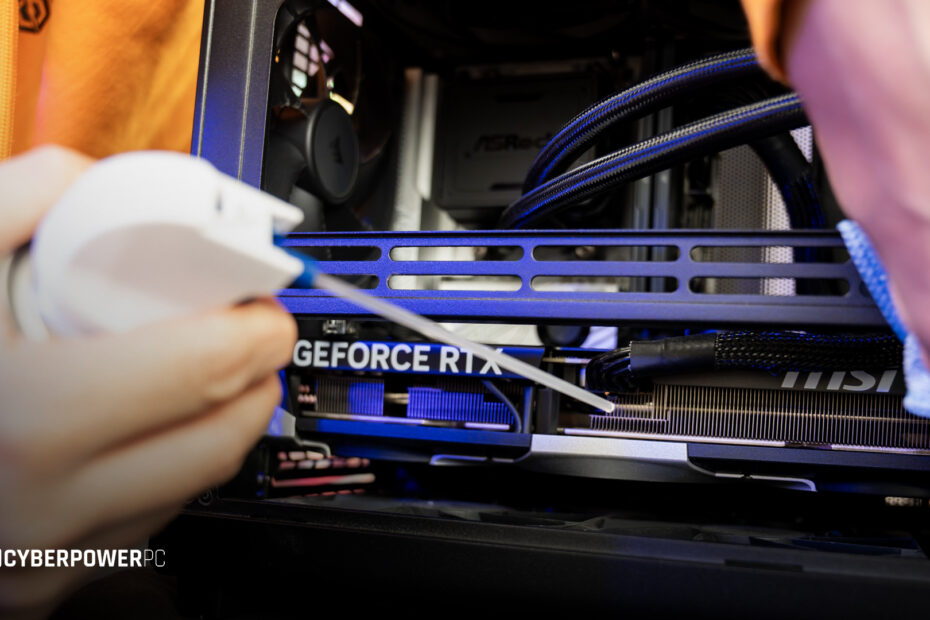
To clean a gaming PC, power it down and unplug it, and use an air duster to blow dust out of the case, fans and filters, holding the fan blades still as you work. Wipe surfaces with a microfibre cloth, using 99% isopropyl alcohol for anything stubborn. Most PCs need this every three to six months.
Why do I need to clean my PC?
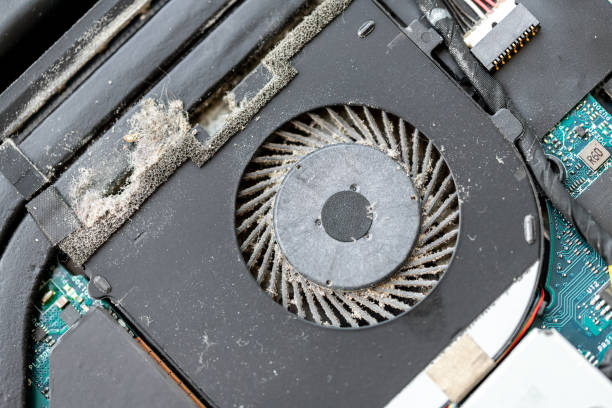
Dust acts as insulation inside your gaming PC. It settles on heatsink fins, radiator cores and fan blades, and every layer of dust makes it harder for your components to shed the heat they generate.
The caused effects are worse than they sound. Modern processors and graphics cards constantly adjust their clock speeds based on temperature, increasing when they have thermal headroom and pulling back when they don’t. A dusty PC runs hotter, so it throttles sooner, which means lower frame rates in exactly the long gaming sessions where you notice it most. Your fans also spin faster to compensate, so the PC gets louder as it gets slower.
Over a longer period, sustained high temperatures can shorten the lifespan of your components, and thick dust build-up can trap moisture in humid conditions, which is where the genuine risk of corrosion starts. A ten-minute clean every few months can prevent this from happening.
How often should I clean my PC?
It is recommended to deep clean the inside of your PC every three to six months, check and clean dust filters every one to three months, and to wipe down external surfaces whenever they look like they need it.
The cleaning intervals may differ depending on your environment. Clean more often if you have pets, if the PC sits on carpet rather than a desk, if anyone smokes or vapes near it, or if it’s in a bedroom where bedding sheds fibres constantly. Clean less often if it sits on a hard surface in a low-dust room with good filters.
The honest answer is to look rather than guess. Take the side panel off every couple of months to see how it’s doing.
What are the signs your PC needs cleaning?
- Fans are louder than they used to be, especially while the PC is idle or during light tasks.
- Frame rates of games drop the longer you play rather than staying steady.
- The case feels warm and the exhaust air is noticeably hot.
- Visible dust on filters, fan blades or the graphics card.
- Random shutdowns under load, which is thermal protection kicking in.
- Higher temperatures than you remember in your temperature monitoring software.
What do I need to clean my PC?
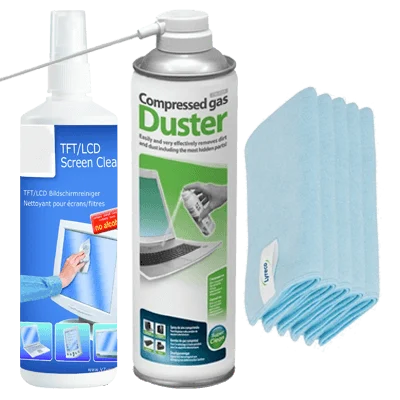
CyberPowerPC UK offers a full PC cleaning kit, including air duster, cloths and screen cleaner. See a full list of individual items you may need below:
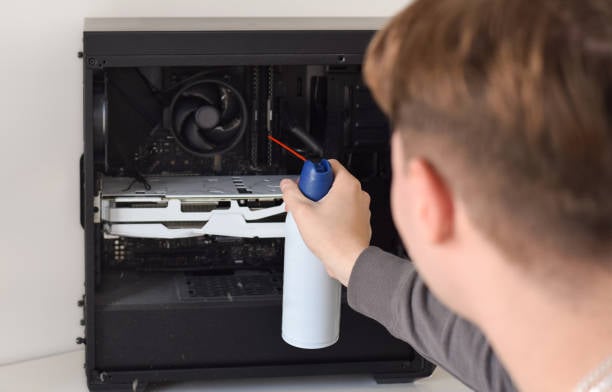
- An air duster is essential for cleaning your PC. A can of compressed air clears dust from heatsink fins, fan blades and filters far more effectively than brushing alone, and it reaches into the tight gaps around the CPU cooler and graphics card that nothing else will. Keep the can upright and use short bursts rather than one long blast, as tilting or shaking it can release liquid propellant onto your components. Electric air dusters do the same job without ever running out, if you clean often enough to justify one.
- Microfibre cloths for surfaces, glass panels and screens. Keep one dry and one for damp work.
- 99% isopropyl alcohol for stubborn grime. The high concentration matters because it contains less water and evaporates faster, leaving no residue. Anything below 90% is not worth buying for this use.
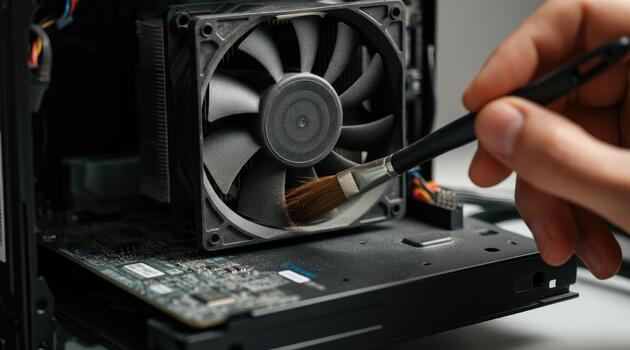
- Soft anti-static brushes in a couple of sizes, for heatsink fins, radiators and circuit boards. A clean, unused paintbrush can work.
- Cotton buds for tight corners.
A small selection of these, as well as a screwdriver, covers everything in this guide, and they’re the sort of thing worth keeping alongside your peripherals and accessories rather than buying in a panic when the fans start screaming.
Before you start
Power your PC down fully, switch it off at the wall and unplug the mains cable. Then hold the power button for about five seconds to discharge any residual current in the system.
Ground yourself before touching anything internal. An anti-static wrist strap is the best solution, but touching an unpainted metal part of the case works if you do it regularly as you go. Avoid cleaning while standing on carpet in socks, which is the classic way to build up a charge.
Take the PC somewhere ventilated. Blowing several months of dust around your desk just relocates the problem, and you’ll end up breathing a lot of it in.
Cleaning the exterior and dust filters
Start outside, as most of what gets in comes through here.
Remove the dust filters, which usually sit at the front, top and underneath the case on a magnetic or clip mount. Tap the loose dust off, then rinse them under a tap if they’re fabric or fine mesh. It is crucial to let them dry completely before they go back in. An hour on a radiator, or overnight if you’re not sure.
Wipe the exterior of your PC case with a slightly damp microfibre cloth, and use a dry one on tempered glass panels to avoid streaking. Cotton buds handle the front I/O ports, and an air duster clears the rear panel ports.
How to dust the interior of a PC
With the side panels off, work from top to bottom so dust falls away from what you’ve already cleaned rather than onto it.
When using an air duster, it is important to only use short bursts of air rather than a continuous blast, and keep the nozzle around 15cm from components. Angle the airflow so dust travels out of the case, not deeper into it. Be cautious of where you blow the dust too, as blowing dust into the power supply intake is a common mistake.
Hold the fan blades still while you blow air through them with an air duster. A fan spun by compressed air acts as a small generator, sending voltage back down the cable into the motherboard header.
Work gently through the heatsink fins with a soft brush, and pay attention to the front intake area, which collects the most. Cable management channels behind the motherboard tray can gather more dust than people expect, so check there too.
For the power supply, blow through the external grille only. Never open a PSU. The capacitors inside can hold a dangerous charge long after it’s unplugged.
How do I clean a graphics card without damaging it?
The graphics card collects more dust than anything else in the case, because it has the largest heatsink and usually sits horizontally.
When cleaning your GPU, leave it installed. Hold the fan blades still and blow air through the heatsink fins. Blow air from a few angles to make sure you’re pushing dust out rather than deeper in. A soft brush handles anything that won’t move, and a dry microfibre cloth cleans the backplate and shroud (outer-casing).
How do I clean a motherboard safely?
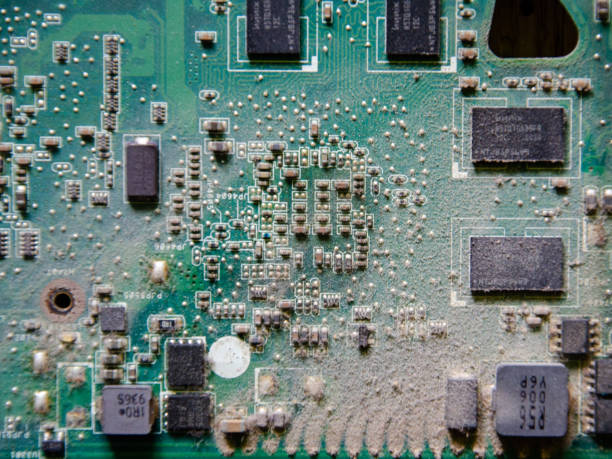
For most PCs, the motherboard needs nothing more than compressed air and a soft anti-static brush. Work carefully around capacitors and the small surface-mounted components near the socket, which can be knocked off by a heavy hand. Pay attention to the areas underneath the GPU and around the rear I/O, which collect the most dust.
If you have any sticky residue, spilled liquid or nicotine film, this is where isopropyl alcohol comes in handy. Apply it to a brush or lint-free cloth rather than pouring it onto the board, work gently, and let it evaporate fully before powering anything on. At 99% concentration that should only take a few minutes, but give it longer than you think it needs.
Taking the motherboard out of the case for cleaning is a job for a machine that has had a genuine spill or many years of neglect, not routine cleaning maintenance. For most people, it creates more risk than it removes. Always reach out to a professional if you are unsure. At CyberPowerPC UK, we have a service team readily available via email, call or live chat to assist you.
Fans, radiators and liquid cooling
Case and CPU fans get the same treatment as everything else: hold the blades, blow through them, brush what remains. Wipe each blade individually with a lightly dampened cloth, which takes slightly longer but gets them genuinely clean.
Radiators need a bit more care. The aluminium fins are thin and bend easily, so blow air through them in the direction opposite to normal airflow, and if you use a brush, work along the fins rather than across them.
All-in-one (AIO) coolers need no internal maintenance. They’re sealed units, so clean the radiator and fans and leave the rest alone.
Custom loops are slightly different. The coolant degrades over time and requires draining, flushing and replacing approximately once a year to keep flow rates and thermal performance where they should be, alongside cleaning the water blocks. It’s a job that requires the right tools and a tolerance for taking a working system apart. If you’d rather not do this yourself, our Hyper Liquid systems and Hyper-X systems both come with an optional Liquid Cooling Service Plan at £150 + VAT, covering collection from UK mainland addresses, a full drain and clean, replacement tubing where needed, and leak, pressure and performance testing before it comes back to you.
Cleaning your peripherals
Your keyboard and mouse are almost always dirtier than the inside of your PC.
Keyboards: unplug your keyboard, turn it upside down and shake out any loose debris, then use compressed air between the keys. For a deep clean on a mechanical board, pull the keycaps with a keycap puller, wash them in warm soapy water, and leave them to dry completely while you brush and wipe the plate underneath. Never spray liquid directly at a keyboard.
Mice: wipe the shell and buttons with a lightly dampened cloth, clear the sensor window with a dry cotton bud, and check the PTFE feet (skates) underneath. Dirty feet are the most common cause of a mouse that suddenly feels like it’s dragging.
Monitors: use a dry microfibre cloth first, then one lightly dampened with distilled water or a screen-safe solution if marks remain. Never use glass cleaner, alcohol or anything ammonia-based on a display panel, and always make sure to wipe gently, not hard.
Headsets: wipe the earcups with a slightly damp cloth and let them dry fully. Fabric pads can usually be removed for a proper clean, and replacement pads are cheap if they are past saving.
What if your PC won’t boot after cleaning?
This happens often enough to have its own blog post, and the cause is almost never the cleaning itself.
In practice it’s almost always something knocked loose. Working inside a case means brushing against cables, and a 24-pin connector that looks seated can be a millimetre out. The typical issues:
- A dislodged power cable, especially the 24-pin motherboard connector or the 8-pin CPU power.
- RAM not fully seated. Push firmly until both clips snap closed.
- The graphics card lifted slightly in its PCIe slot.
- A CPU fan header unplugged. Many motherboards halt at boot with no CPU fan detected and show a fan error.
- Front panel connectors are knocked off, which means the power button doesn’t actually do anything.
Work through these items in that order and you’ll solve the vast majority. Reseat rather than assume: pull each connector fully out and push it back in until it clicks. The other cause can be moisture. If you used any liquid, it may simply not be dry yet. Leave it several hours longer before trying again.
Should you clean it yourself or pay someone?
For routine dusting, it’s better to do it yourself. It takes ten minutes and only needs about £20-30 of PC cleaning tools that last a long time.
Paying someone makes sense in three cases: the PC has been neglected for years and needs genuine disassembly, it has suffered a spill or smoke damage, or it uses a custom liquid cooling loop that needs draining and flushing. The third is the most common, as it’s the one job that genuinely benefits from the right equipment and knowledge.
There’s also a point where cleaning stops being the best answer. If your PC is running hot because it’s six years old and the components are simply past their best, a repaste and a dust won’t change much. That’s the moment to look at what a current prebuilt PC would actually do for you, rather than spending another weekend maintaining something that’s reached the end of its useful life.
Other cleaning tips:
- Photograph your cable layout before you start. Reassembly will be much easier with a reference photo.
- Check your fan orientation while you’re cleaning. Every fan has a small arrow on the frame showing airflow direction; double check yours are fitting the right way.
- Cable management is thermal management. Tidying the mess behind the motherboard tray improves airflow and gives dust less to settle on.
- Lift it off the floor. A PC on carpet ingests far more dust and blocks its own bottom intake. A desk or a stand makes far more difference than any cleaning routine can.
- Do the software side too. Clearing out unused programs, checking startup items and updating your drivers takes ten minutes and addresses a different cause of the same “my PC feels slow” complaint.
Frequently Asked Questions
How often should I clean my PC?
Deep clean the interior approximately every three to six months and check dust filters every one to three months. Clean more frequently if you have pets, smoke/vape near the PC, or keep it on carpet.
Is compressed air safe for PCs?
Yes, if used correctly. Keep the can upright, use short bursts from around 15cm away, and hold fan blades still while blowing through them. Tilting or shaking a can risks spraying liquid propellant onto components.
What alcohol should I use to clean a PC?
Isopropyl alcohol at 99% concentration. Higher concentrations contain less water, evaporate faster and leave no residue. Avoid any below 90%, and never use household cleaners or anything ammonia-based.
Does cleaning my PC improve performance?
Indirectly, yes. Cleaning doesn’t make components faster, but it can lower temperatures, which stops your CPU and GPU throttling under load. On a heavily dusted PC, the difference in sustained frame rates can be significant.
How much does professional PC cleaning cost?
Prices vary by what cleaning is required, from a straightforward dust and service through to full disassembly. If you are unsure on cleaning your PC, how frequently you need to clean your PC, or specifically cleaning certain components, fans or liquid cooling systems, our team is available via call, email or live chat to assist you.